

Image and video generation
Describe the picture you want in Generation, choose a model and view the results.
Last updated on
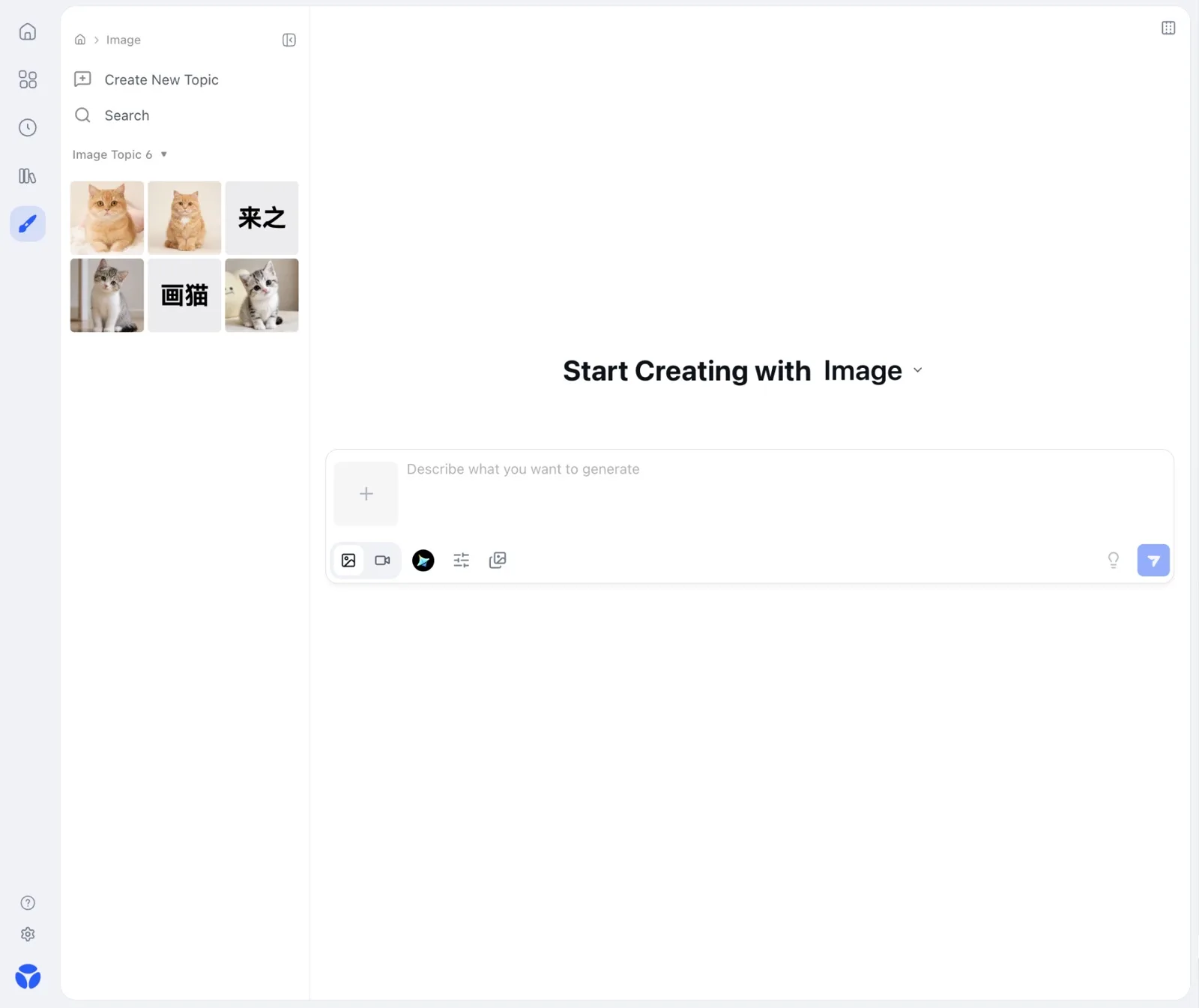
Open Generation from the brush icon in the left navigation bar.
Generate an image
Open Generation
Click the brush icon in the left navigation bar.
Describe what you want
Write what you want to generate in the input box at the bottom. The placeholder reads Describe what you want to generate.
Send
Click the send button at the bottom right. It is grey while the input is empty.
View the result
See the result in the centre area; earlier records can be revisited under Image Topic on the left.
Input controls
Below the input box at the bottom is a row of icons. From left to right they roughly are: two icons for image and video (switching the generation type), a round model icon (choosing a model) and a sliders icon (parameters).
Results
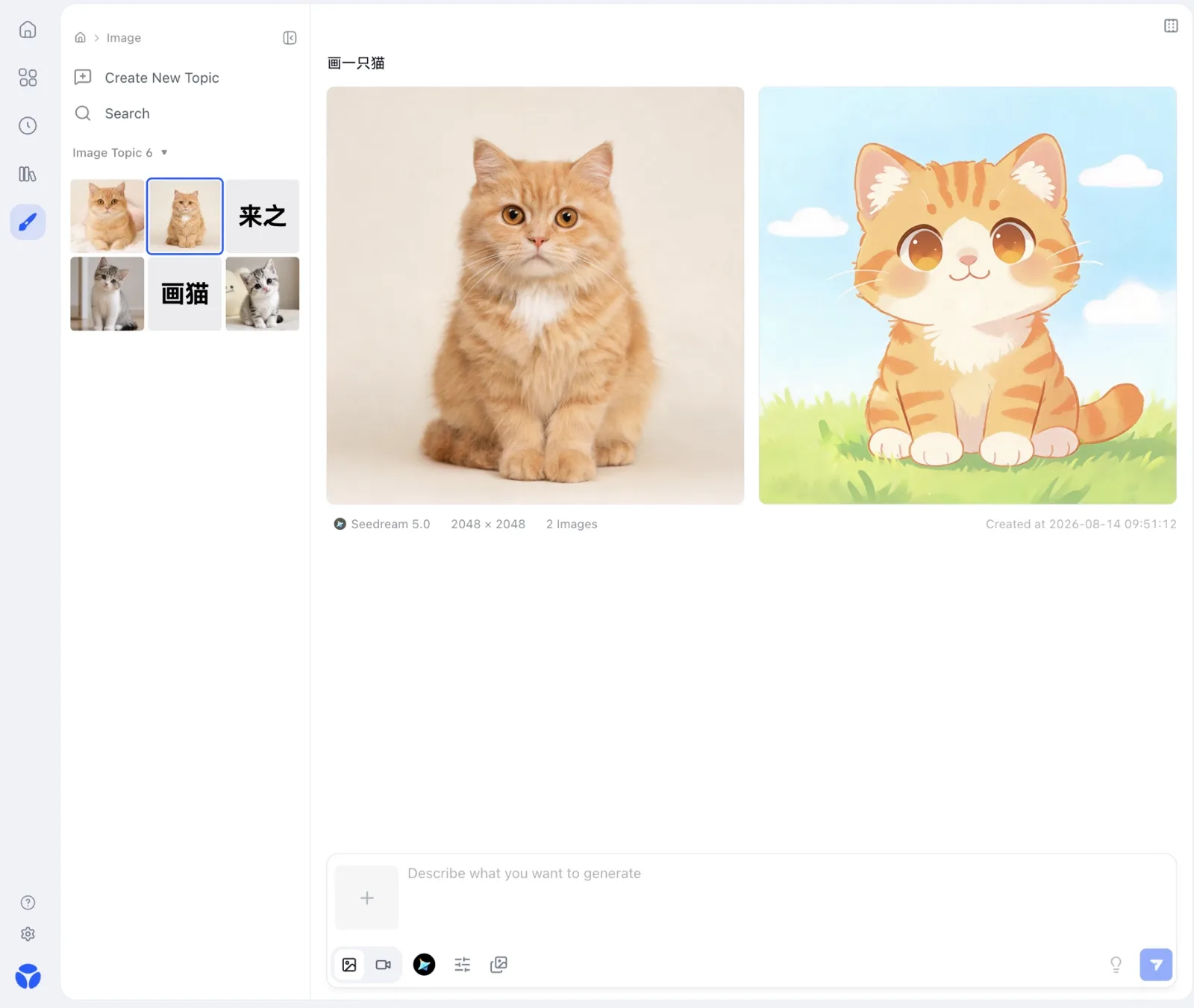
Each record shows the prompt, the model used, the image size, the number of images and the creation time.
To be completed
Detailed steps, available models and parameters for video generation will be added when product material is available.
Was this page helpful?