

Topics and chats
A Topic is a single conversation. Learn the parts of a chat page, the input controls and the run states.
Last updated on
A Topic is a single conversation, shown as one entry under Recents on the left. After you send the first message, the page moves to the topic's own page and the title is generated automatically. Topics started through a project are grouped under that project.
Parts of a chat page
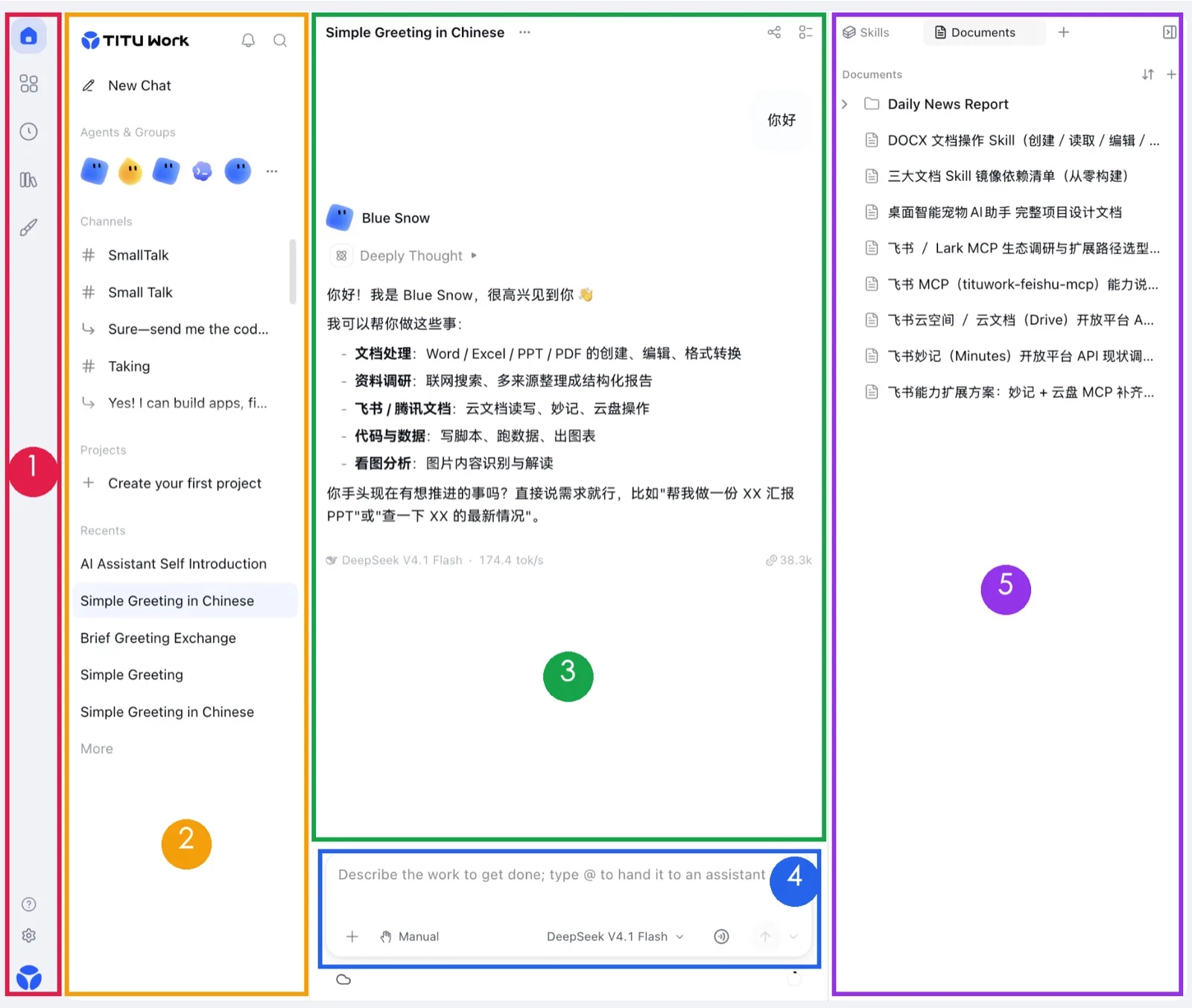
| No. | Area | Contents |
|---|---|---|
| 1 | Navigation bar | Top-level module icons: Home, Community, Scheduled tasks, Resources, Generation; Settings and your account at the bottom left |
| 2 | Sidebar | New Chat, Agents & Groups, Channels, Projects, Recents |
| 3 | Conversation area | Your messages, the agent's replies, collapsed steps, model and token information |
| 4 | Input area | Input box, +, approval mode, model, send button |
| 5 | Right panel | Skills and Documents tabs |
When the window is narrow, the leftmost navigation bar shows icons only. From top to bottom they are Home, Community (grid), Scheduled tasks (clock), Resources (bookshelf) and Generation (brush).
Input controls
| Control | What it does |
|---|---|
| + → Attachments | Add attachments: upload a file or image, or choose files from a library |
| + → Skills | Manage the skills available in this chat |
| + → Formatting Tool | Formatting tool, with a switch |
| + → Advanced Parameters | Advanced parameters |
Typing @ | Opens a list of things you can hand the task to, in three groups: Agents, Skills, Tools |
| Model name | Choose the model for this chat; see Choose a model |
| Auto Approve | Choose how tools are approved; see Tool approval |
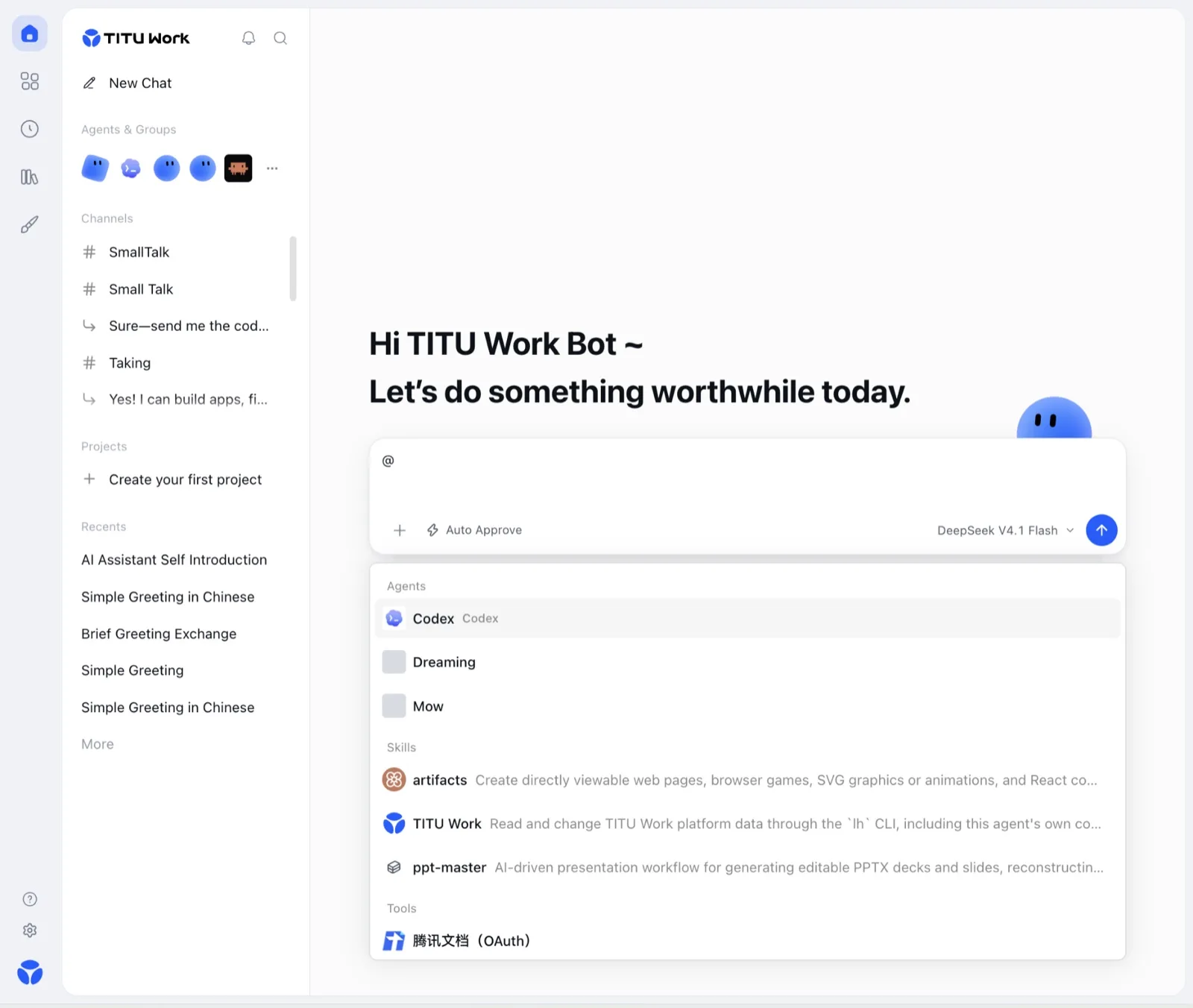
@. You can hand the task to a specific agent, skill or tool.Run states
| State | What you see |
|---|---|
| Processing | Deep Thinking... appears in the reply area; Thinking... and a timer show above the input box; the send button becomes a stop button; a notice says the task runs on the server and you may leave the page |
| Complete | A collapsed Ran N steps (Ns) row; the model, speed and token count appear below the reply |
| Needs approval | In Manual or Allow List mode, an approval card appears where the input area is |
The right panel
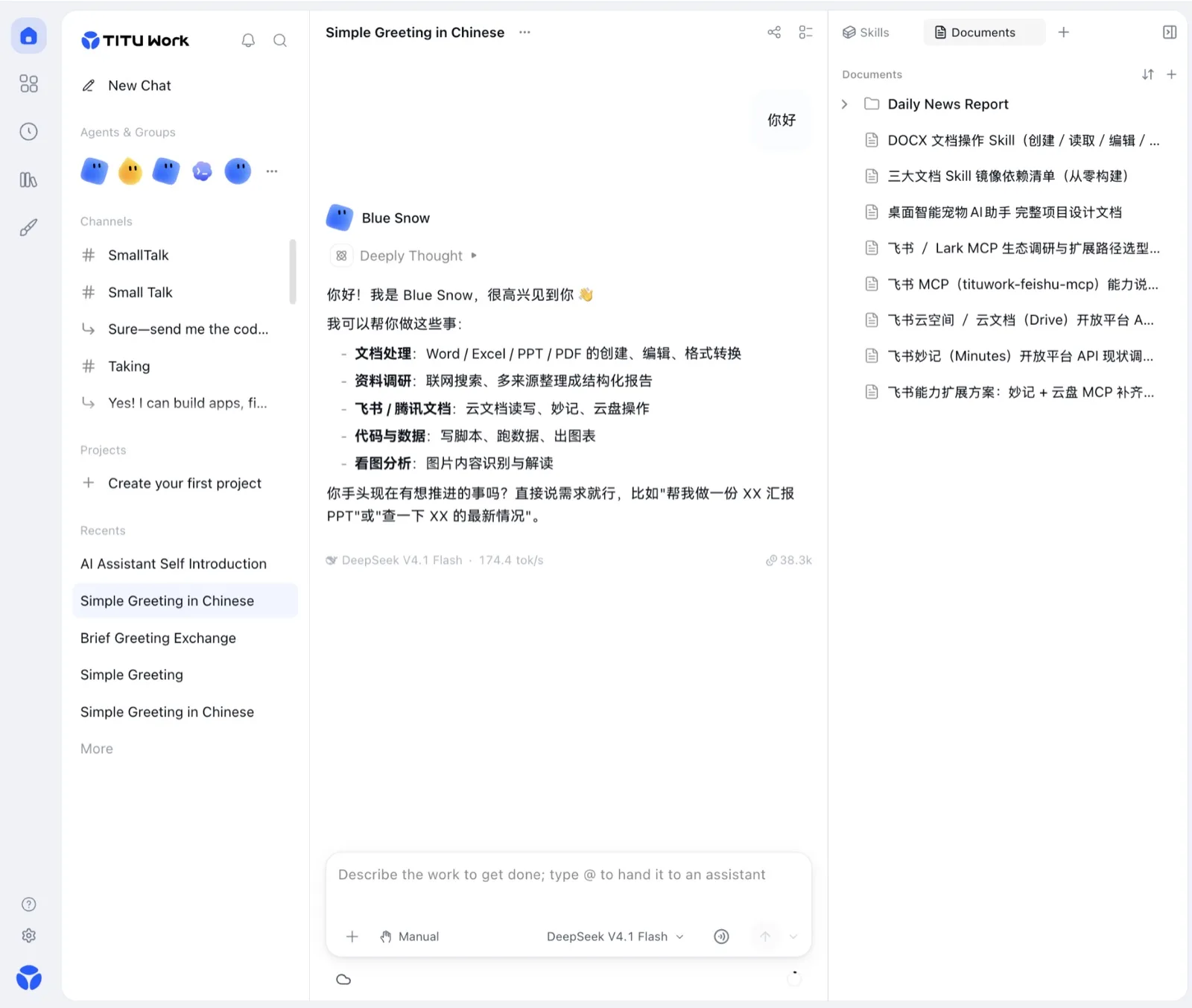
The right side of a chat page has two tabs:
- Skills: lists the community skills installed on the current agent. Each row has "view" and "delete" icons; confirm before deleting.
- Documents: every document this agent generates is kept here. You can open one to preview it or download it.
Related reading
Was this page helpful?
Agents
An Agent is the AI role that carries out tasks. Learn where agents come from, how to manage them and how they relate to skills and connectors.
Skills
A Skill is a set of working methods added to an agent, such as handling Excel or generating slides. Learn where skills come from, and how to view and uninstall them.