

Quick start
Spend five minutes getting to know the home page, send your first message and find the result.
Last updated on
This guide takes you through your first use: getting to know the home page, sending a message and viewing the result. Make sure you are signed in and can see the TITU Work home page. If you see a sign-in page instead, contact your administrator.
Get to know the home page
After signing in you land on the home page (Home). The centre holds a greeting and the input box; the left side holds navigation and your chat list.
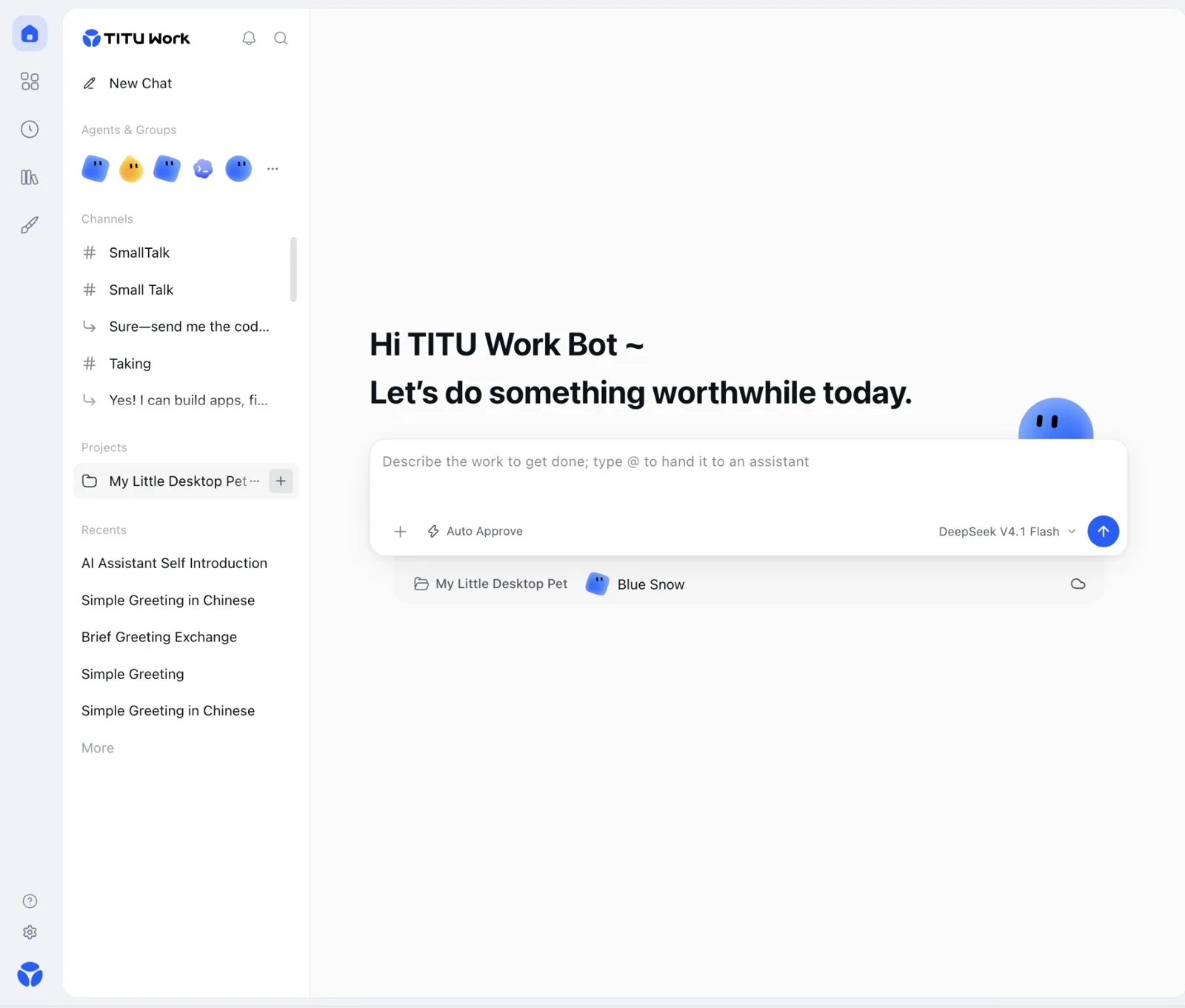
| Where | Control | What it does |
|---|---|---|
| Top left | New Chat | Start a new chat |
| Centre | Input box | Describe the work; type @ to hand it to a specific agent |
| Below the input | +, Auto Approve, model name, send button | Add attachments and skills, choose how tools are approved, choose a model, send |
| Under the input box | Project and agent labels | Choose a project and the agent in charge of this chat |
For a full description of each area, see Topics and chats.
Send your first message
Write the task
Click the input box in the centre and describe the work. For example: "I'd like to discuss an idea for a desktop pet."
Choose a model (optional)
Click the model name at the bottom right of the input box to switch models. Models differ in ability and cost; see Choose a model.
Send
Click the up arrow to send. The page moves to the chat's own page with an automatically generated title, and the chat appears under Recents (or its project) on the left.
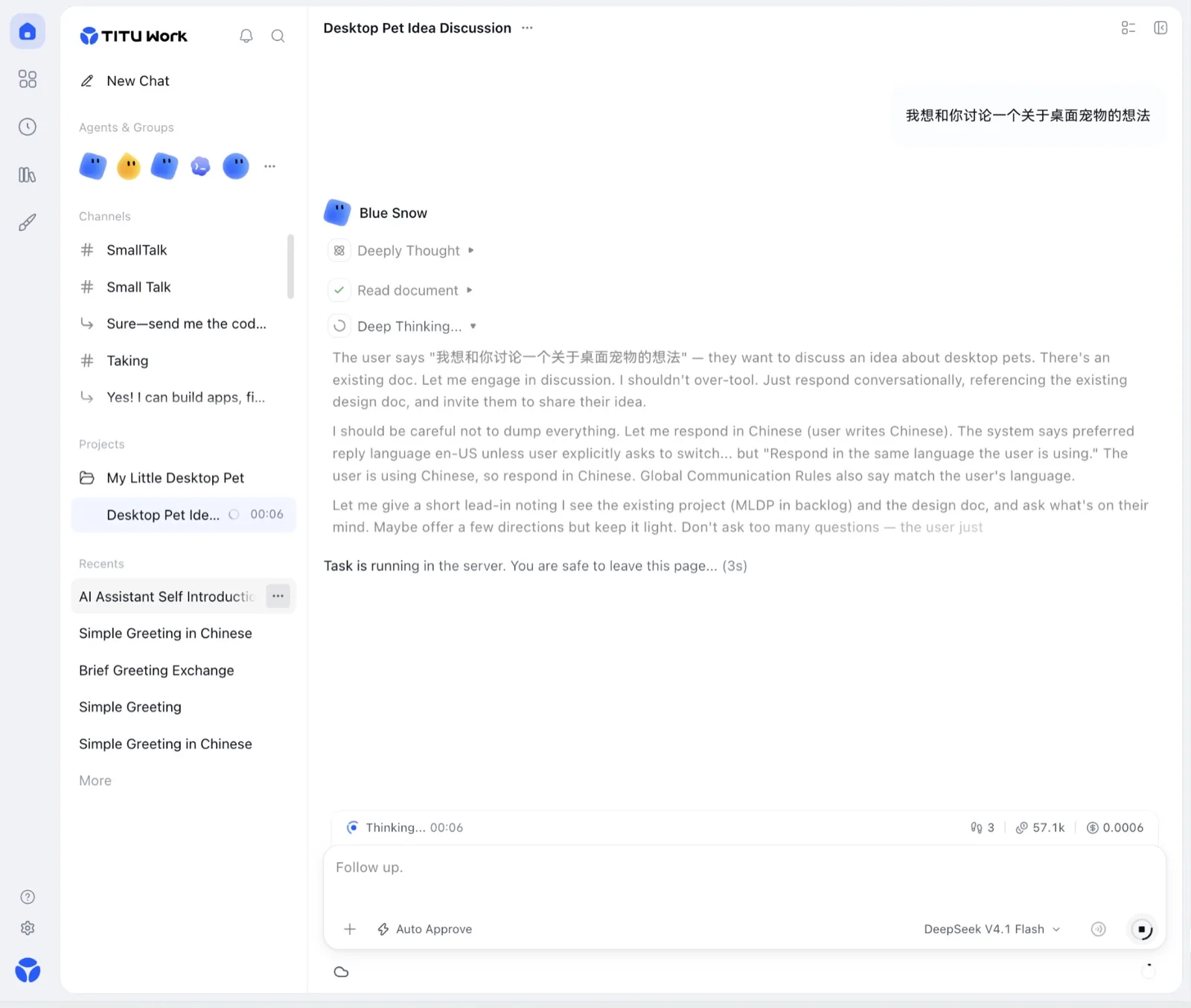
While it runs, the chat shows Task is running in the server. You are safe to leave this page.... The task runs on the server, so leaving the page does not interrupt it. When you return, click the chat title under Recents.
View the result
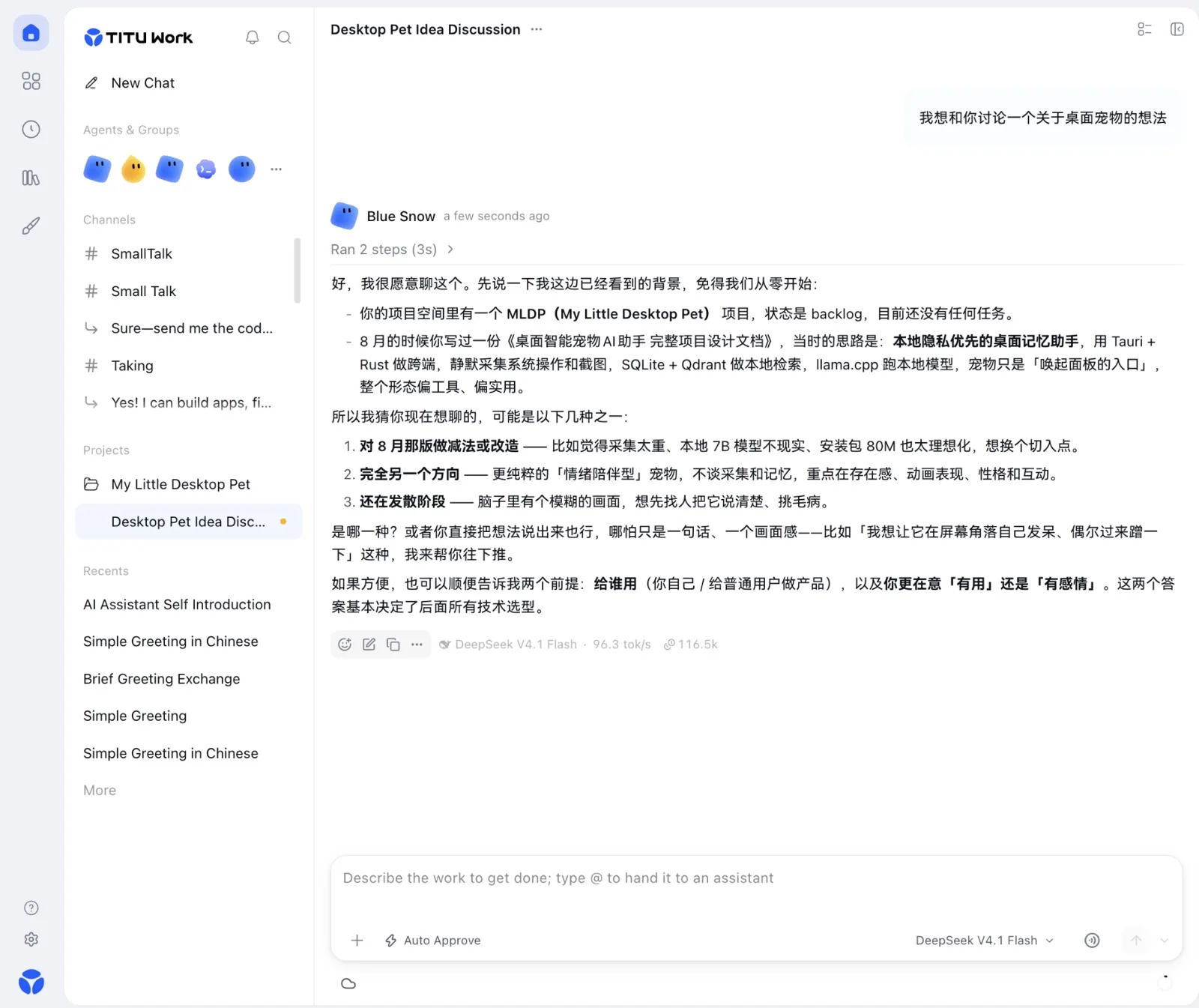
- Click the Ran N steps row above the reply to see what the agent did.
- Below the reply you see the model, output speed and token count; click the number to see usage, as described in Usage and tokens.
- To return to an earlier chat, click its title under Recents; More at the bottom of the list shows more.
Two things to know from the start
Tool approval defaults to Auto Approve
Auto Approve in the input box lets the agent run every tool call automatically. For tasks involving external systems, switch to Manual so you confirm each call. See Tool approval.
Where is the output? Documents the agent generates are in the Documents panel on the right of the chat, and also in Resources. See Resources and Library.
What's next
Was this page helpful?
Introducing TITU Work
TITU Work is a web-based AI workbench: describe the work, and an agent uses skills and connectors to get it done, leaving the results in chats, documents and resources.
Core concepts
Get to know agents, topics, skills, connectors, projects and resources, and how they fit together.