

Execution devices
Connect your own computer to TITU Work and check whether a device is online.
Last updated on
Settings → Personal → Devices manages the devices connected to your account. Some connectors must run locally in the desktop client, so you need to connect a device first; see Connectors.
Connect a device
Click Connect Device at the top right of My Devices. There are two ways. Both dialogs carry the note at the bottom: Only device metadata is registered — your data is never accessed.
Via Desktop
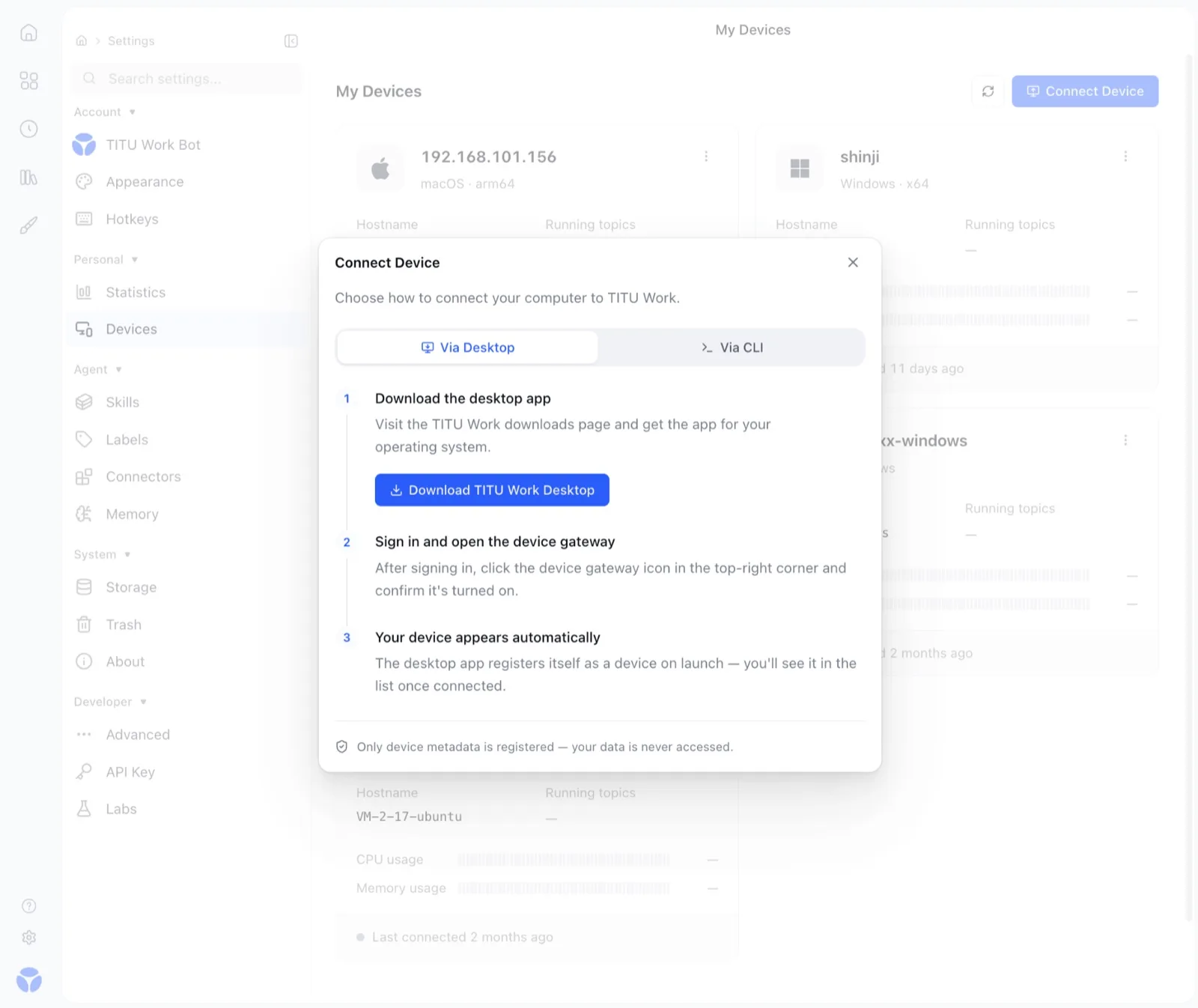
- Download the desktop app.
- Sign in and turn on the device gateway at the top right.
- The device appears in the list automatically.
Via CLI
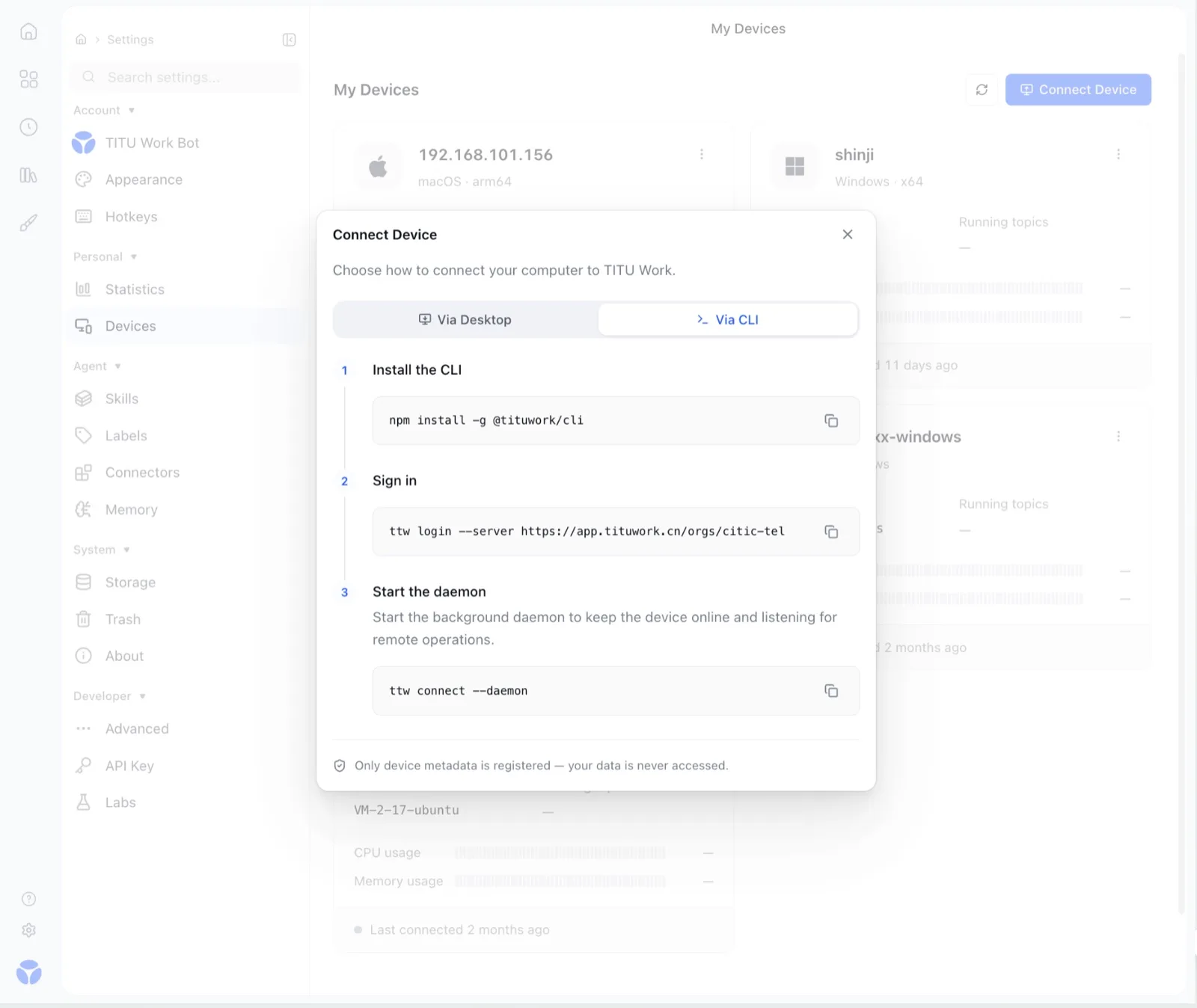
Run these in order:
npm install -g @tituwork/cli
ttw login --server https://app.tituwork.cn/orgs/<your-organization>
ttw connect --daemon
For the server address in ttw login, use the one shown in the dialog; <your-organization> here is only a placeholder.
Check whether a device is online
Each device card shows the device name, system information (such as macOS · arm64, Windows · x64, Linux), Hostname, Running topics, CPU usage and Memory usage. The status bar at the bottom of the card shows the connection state:
- Green dot Online · Connected 3 hours ago: online.
- Grey dot Last connected 11 days ago: offline, with the time of the last connection.
Hostname is not necessarily a readable name; it can also be a string of IP addresses.
Was this page helpful?