

Scheduled tasks
Create scheduled tasks so an agent runs automatically at set times; view run history, run now, pause and filter.
Last updated on
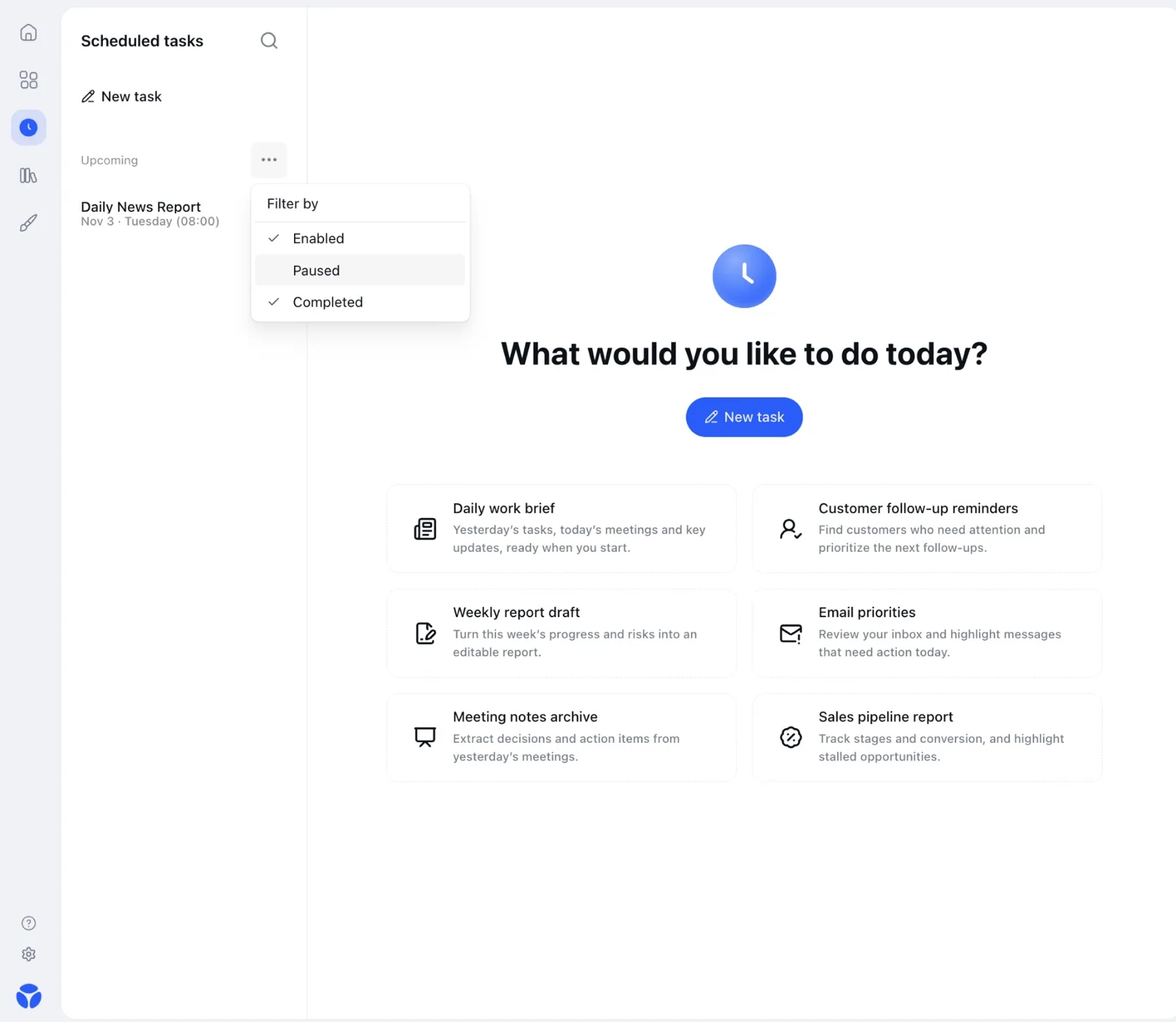
Scheduled tasks let an agent run a piece of work automatically at the frequency you set, for example generating an industry report at 8 a.m. every day. Open it from the clock icon in the left navigation bar.
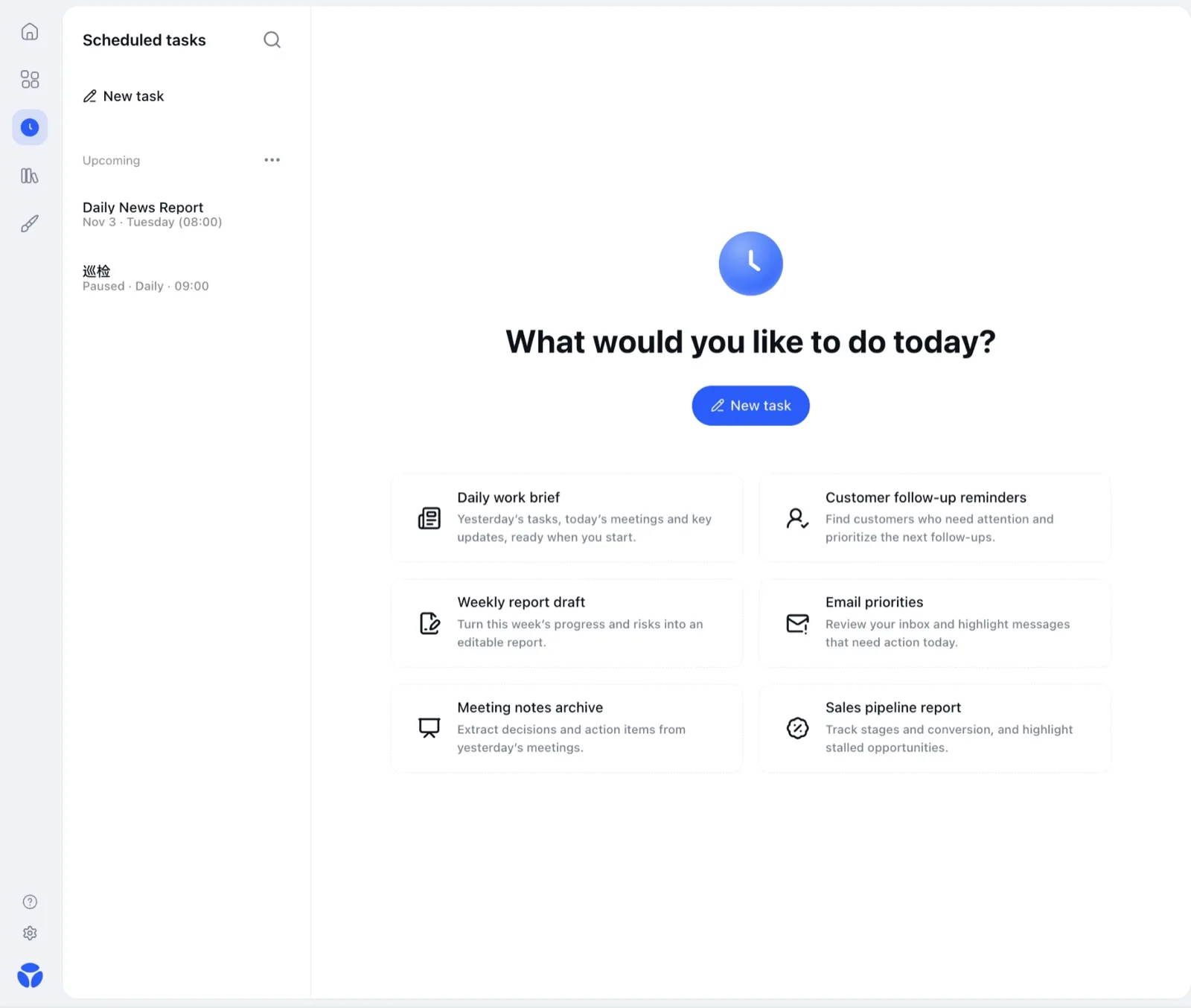
The home page offers six templates: Daily work brief, Customer follow-up reminders, Weekly report draft, Email priorities, Meeting notes archive and Sales pipeline report.
Create a task
Open the form
Click New task on the left or the New task button in the centre.
Describe the task
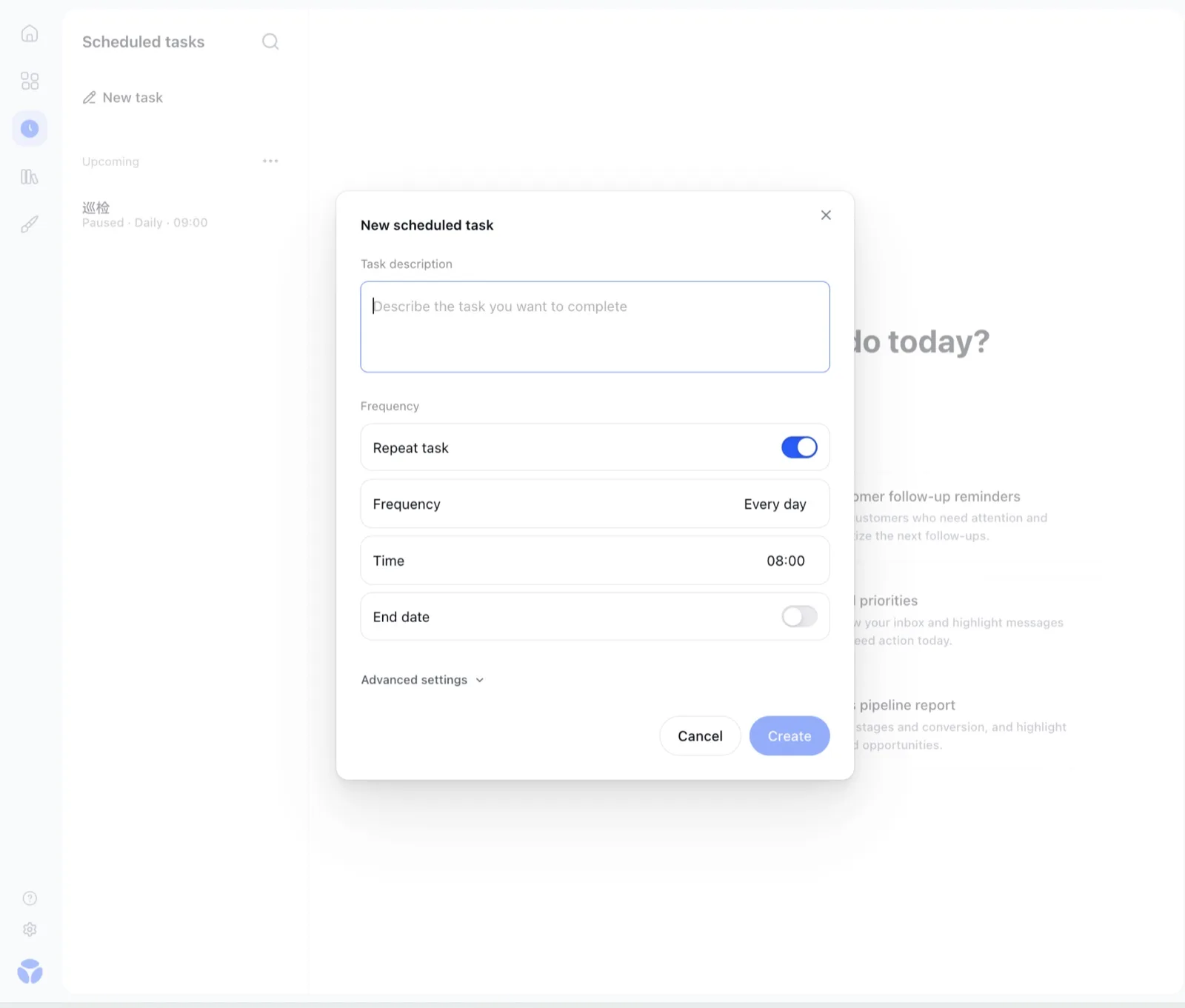
Write the task in Task description. The placeholder reads Describe the task you want to complete.
Set the frequency
In the Frequency area, check the Repeat task switch, Frequency and Time. Turn on the End date switch if you need an end date.
Expand advanced settings (optional)
Click Advanced settings to set how it runs, the agent and the model.
Create
Click Create.
| Field | Default | Description |
|---|---|---|
| Task description | Empty | What the task is |
| Repeat task | On | Whether it repeats |
| Frequency | Every day | How often it runs |
| Time | 08:00 | When it runs |
| End date | Off | An end date |
| Each run starts a new chat | On | Every run opens a new chat |
| Archive successful runs | On | Successful runs are archived automatically |
| Project | None | A linked project |
| Run location | Cloud Sandbox | Where it runs: an isolated cloud environment |
| Agent | Blue Snow | The agent that runs it |
| Model | DeepSeek V4.1 Flash | The model used |
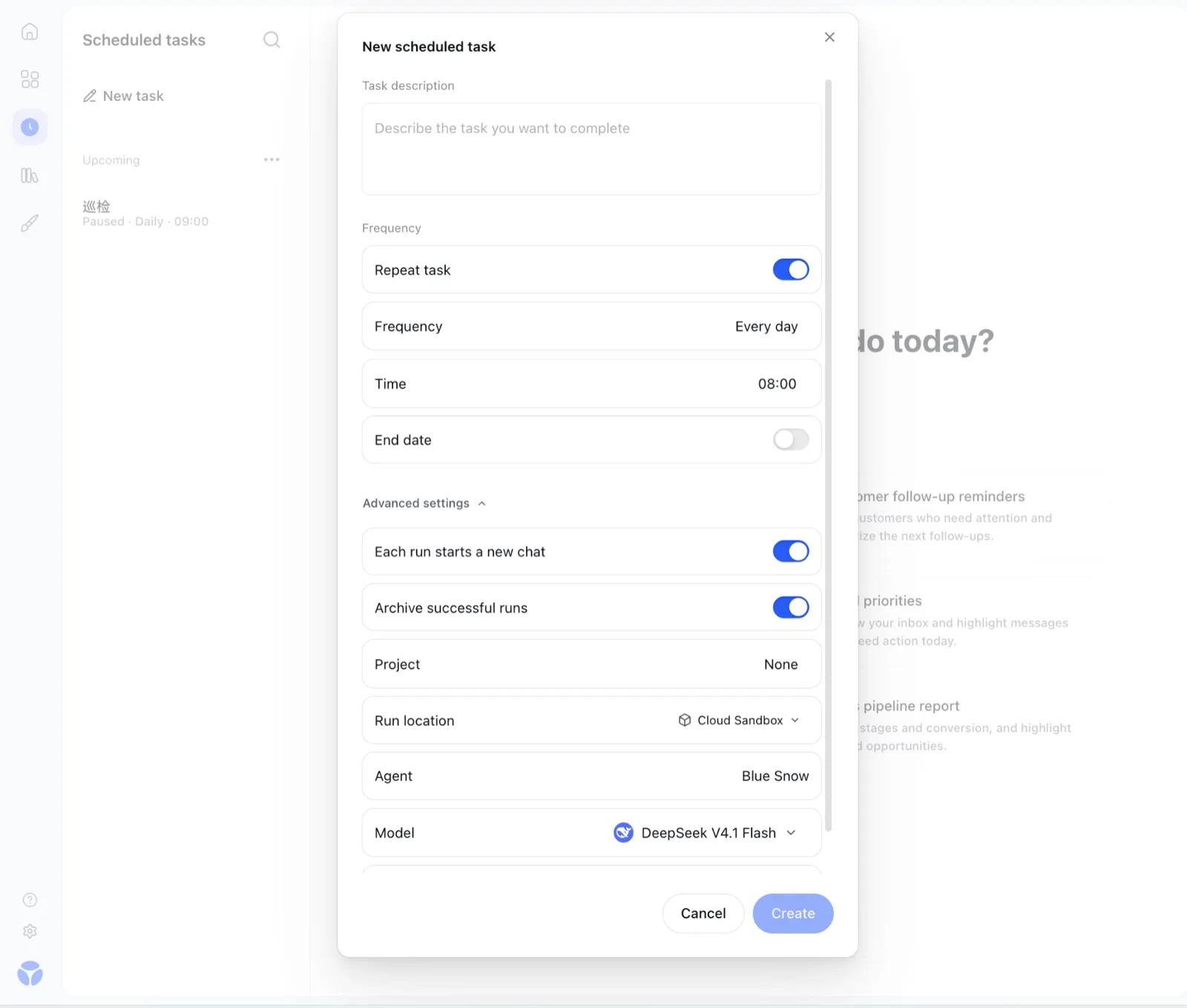
The new-task form has no separate Task name field; it appears when you edit a task.
View a task and its runs
Click a task in the left list to open its details. The details include Task description, Frequency, Agent, Model, Project, Run location, Other settings and Run history.
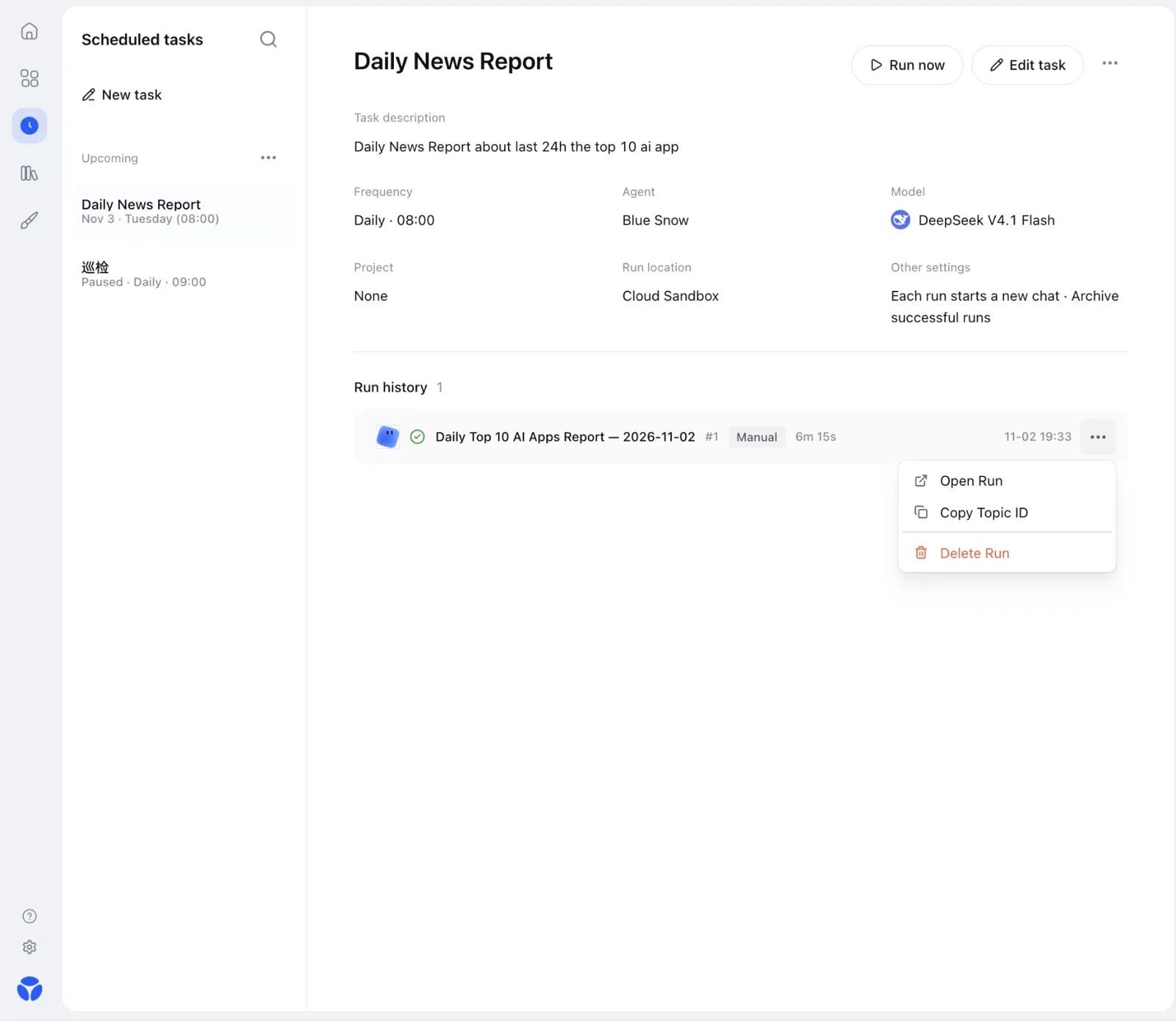
There are three buttons beside the title: Run now (shown as a ▶ icon in a narrow window), Edit task and ··· (more).
Each row of Run history shows, in order: the agent avatar, a status icon (a green tick for success), the run's title, its number (such as #1), a trigger tag (Manual means it was triggered manually), the duration and the time. Documents produced by a run go into a document folder and can be found in the Documents panel of a chat and under Resources → Works.
While a run is in progress, the task shows Running in the left list, the right column shows live progress, and the input box at the bottom lets you follow up on this run's result.
Common actions
Run once now
- Click the task name in the left list to open its details.
- Click Run now beside the title.
- Check the new row in Run history; a green tick means success.
Pause scheduled runs
- In the task details, click ··· beside the title.
- Click Pause schedule.
A paused task appears in the list in a form like Paused · Daily · 09:00. The ··· menu contains only this one item, with no delete option.
Filter the task list
Click the ··· to the right of Upcoming on the left, and tick Enabled, Paused or Completed under Filter by to choose which states to show.
Manage a run
In Run history, click the ··· at the end of a row: Open Run opens the run, Copy Topic ID copies the corresponding topic ID, and Delete Run deletes the run record.
Every run consumes tokens
Tasks run automatically in a cloud sandbox, and every run consumes tokens. The work card on the Resources page shows the cost of that run. Pause tasks you do not need to run automatically, and confirm before deleting a run record.
Example: a report every day
Goal: have Blue Snow generate a "Top 10 AI apps in the last 24 hours" report at 08:00 every day.
- Click the clock icon on the left, then New task.
- Write the task in Task description.
- Keep Repeat task on, Frequency as Every day and Time as 08:00.
- Expand Advanced settings and confirm Agent is Blue Snow and Run location is Cloud Sandbox.
- Click Create, then open the details and click Run now to run it once immediately.
- When the run finishes, you will see #1 in Run history; the report is in the Documents panel of a chat.
Once created, the list shows the next run time.
Was this page helpful?