

Account and appearance
Profile, appearance, language and hotkey settings.
Last updated on
Profile
The first item under Account in the settings directory (showing your account name) is your profile, and it is the page that opens by default. The main part is the Account card:
| Control | What it does |
|---|---|
| Avatar | Your avatar |
| Fullname | Your display name |
| Username | Your username |
| Interests | Interest tags, such as Content Creation, Programming & Development and Design & Creativity |
| Password | A Reset password button on the right |
| Email Address | Your current email, with Update Email on the right |
| Connected Accounts | Linked third-party accounts |
Affects how you sign in
Reset password and Update Email change how you sign in. Confirm before you use them.
Appearance
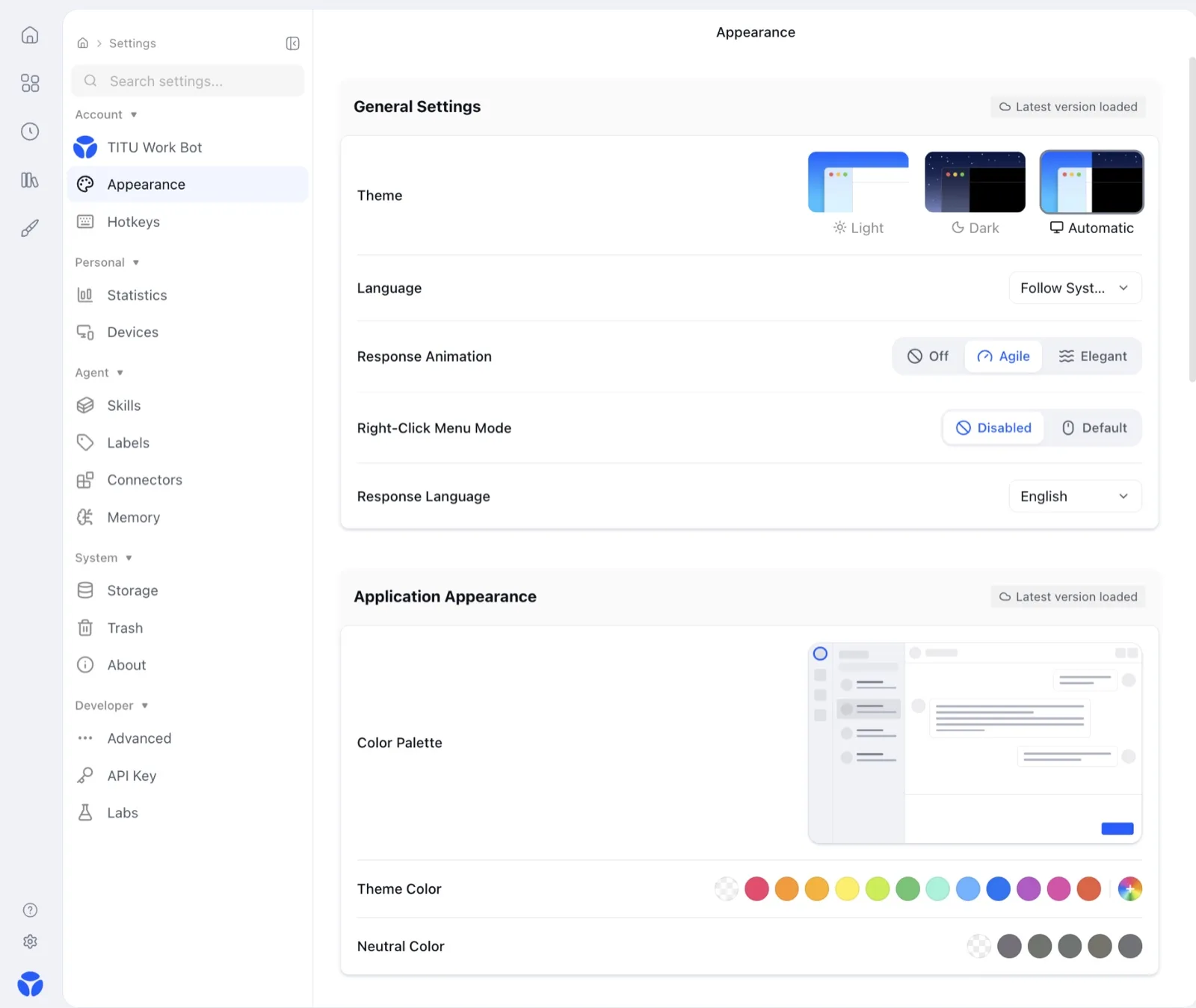
| Setting | Options |
|---|---|
| Theme | Light, Dark, Automatic |
| Language | Interface language dropdown |
| Response Animation | Off, Agile, Elegant |
| Right-Click Menu Mode | Disabled, Default |
| Response Language | The language agents reply in |
| Theme Color, Neutral Color | Colour swatches |
Hotkeys
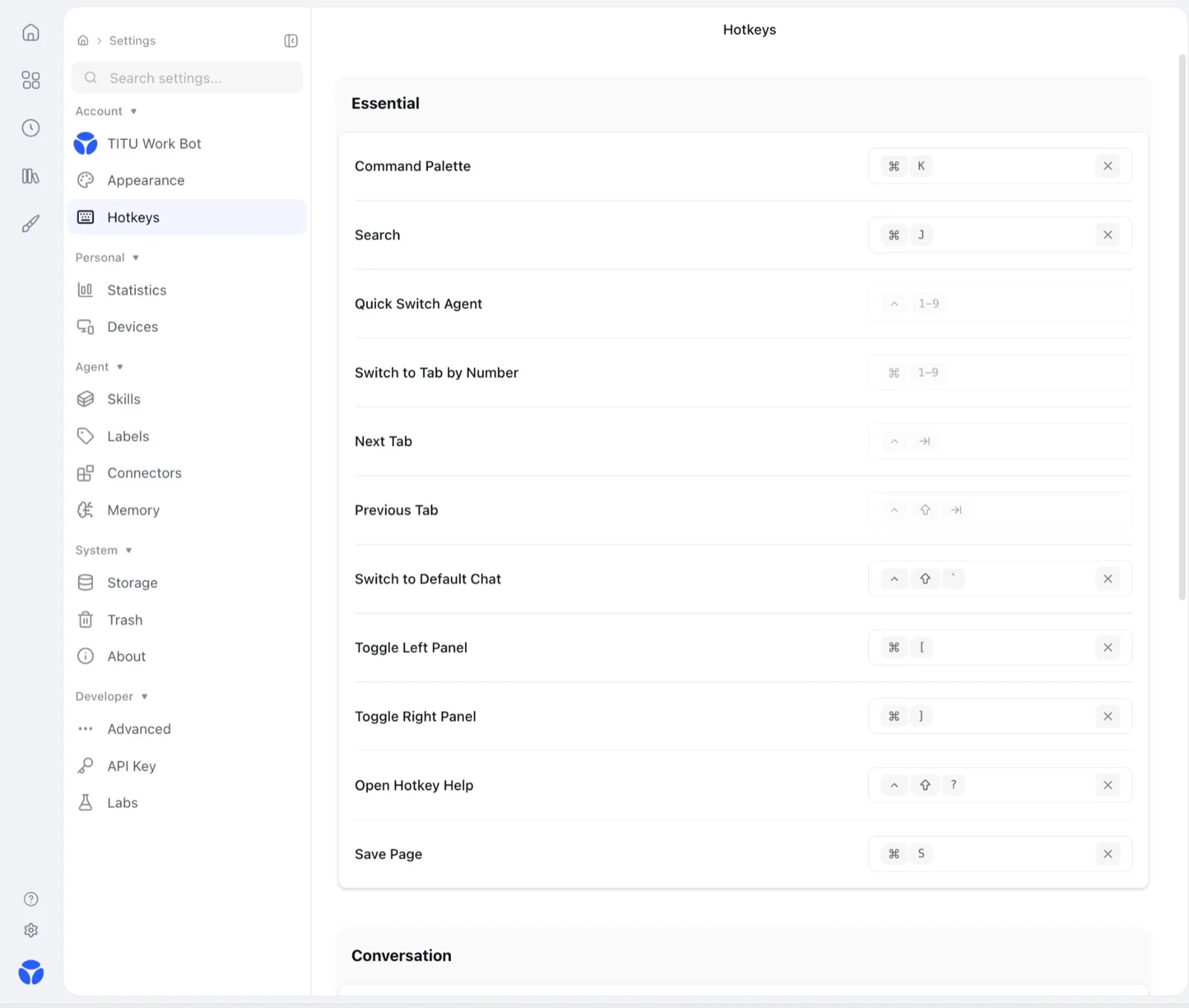
| Function | macOS keys |
|---|---|
| Command Palette | ⌘K |
| Search | ⌘J |
| Quick Switch Agent | ^1-9 |
| Switch to Tab by Number | ⌘1-9 |
| Next Tab / Previous Tab | ^→ / ^⇧→ |
| Toggle Left Panel / Right Panel | ⌘[ / ⌘] |
| Open Hotkey Help | ^⇧? |
| Save Page | ⌘S |
Entries with an "×" can have their custom keys cleared. There is also a Conversation group lower on the page.
Was this page helpful?