

Install an agent from the community
Browse agents, skills and connectors in the community, install an agent to your account and start chatting right away.
Last updated on
The Community collects agents, skills and connectors you can install. Open it from the grid icon in the left navigation bar. It has three tabs at the top — Assistants, Skills and Connectors — and a search box at the top right that searches by name, description or keyword.
Browse agents
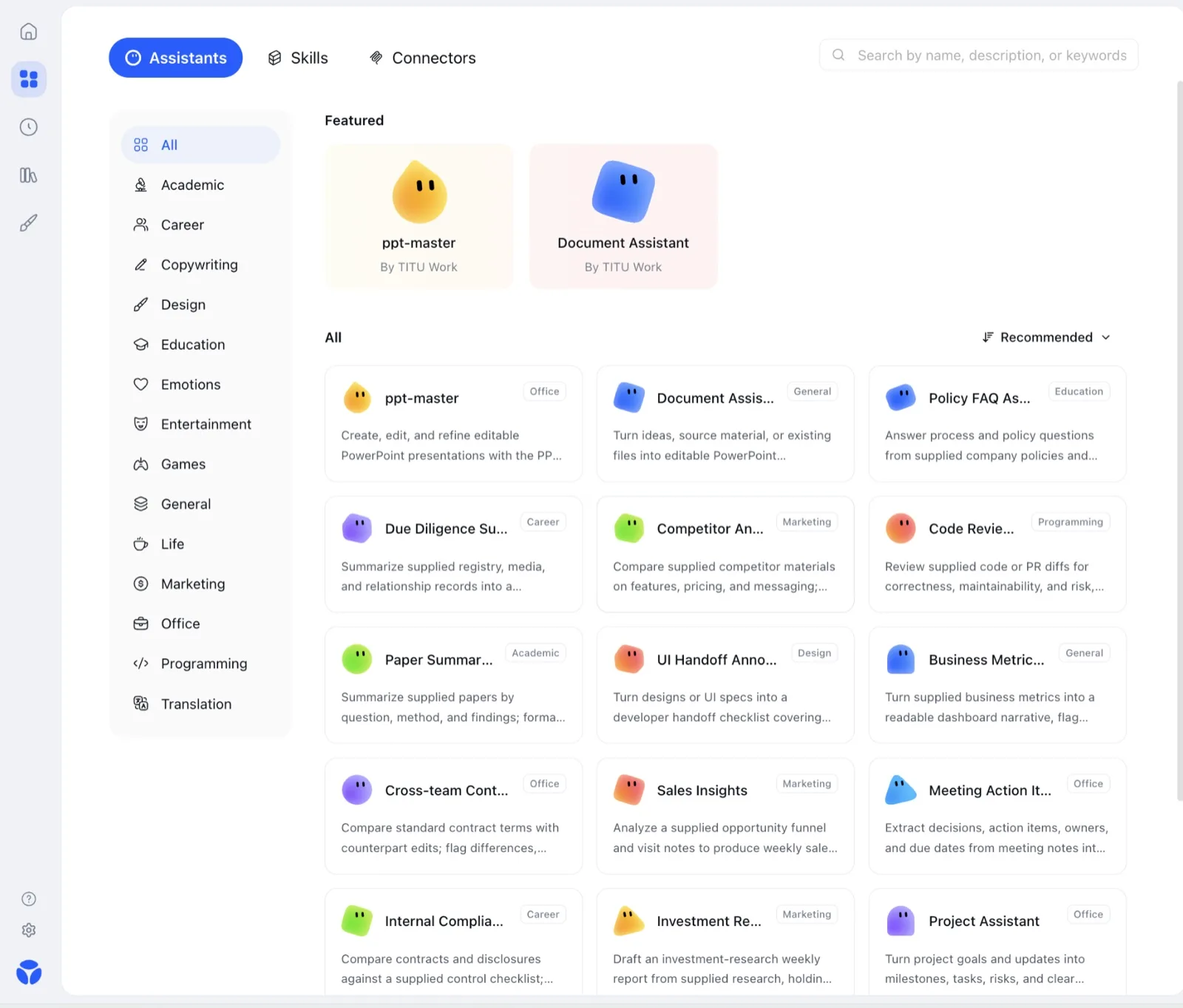
- Categories: All, Academic, Career, Copywriting, Design, Education, Emotions, Entertainment, Games, General, Life, Marketing, Office, Programming, Translation.
- Each card shows a name, a category tag and a one-line description.
- Click a card to open its detail page, which has three tabs at the top: Overview, Configuration and Version history.
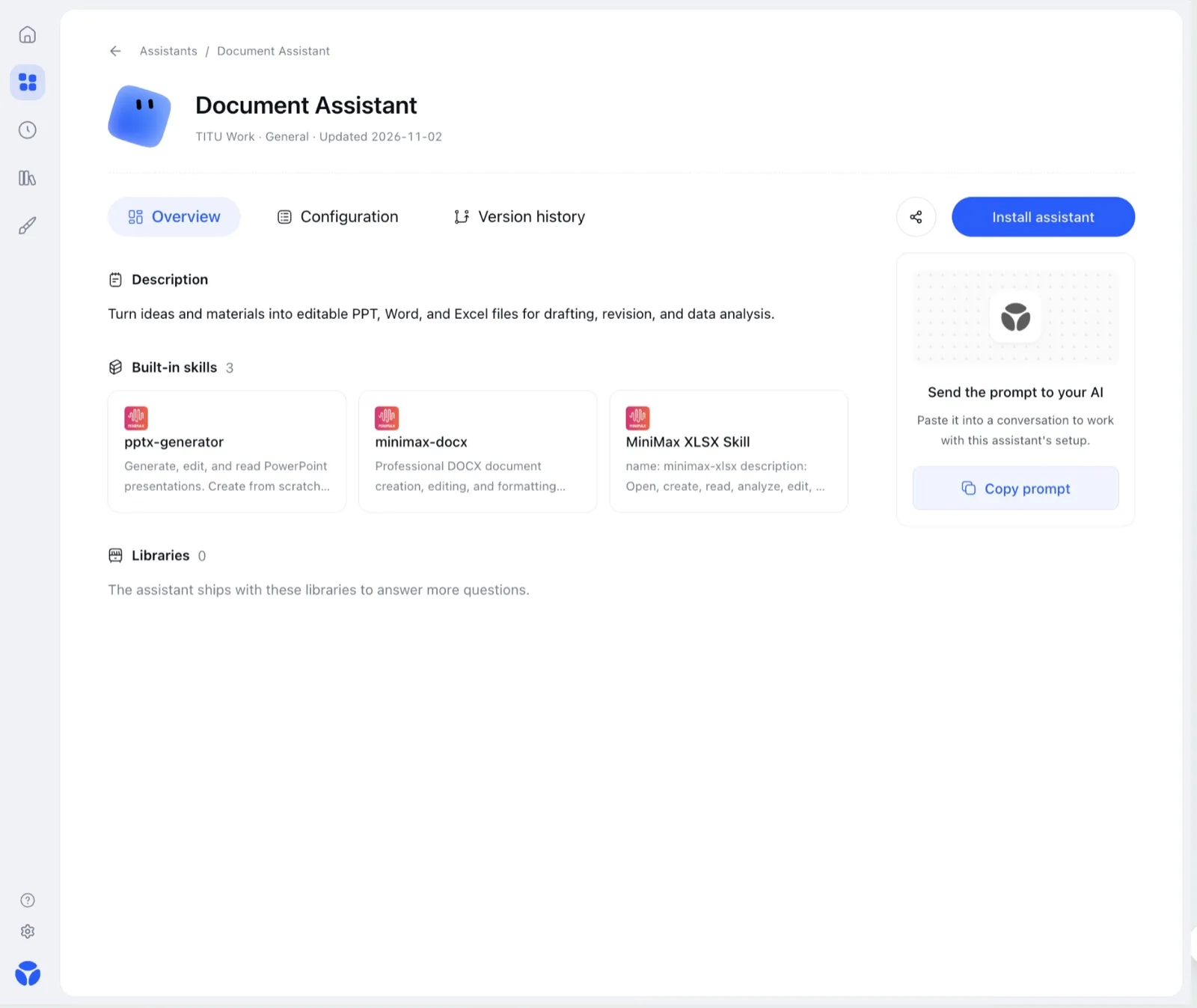
| Section | Contents |
|---|---|
| Description | A summary of the agent |
| Built-in skills | The number of built-in skills and their cards |
| Libraries | Libraries the agent ships with |
| Send the prompt to your AI | Copies this agent's setup as a prompt that you paste into a chat |
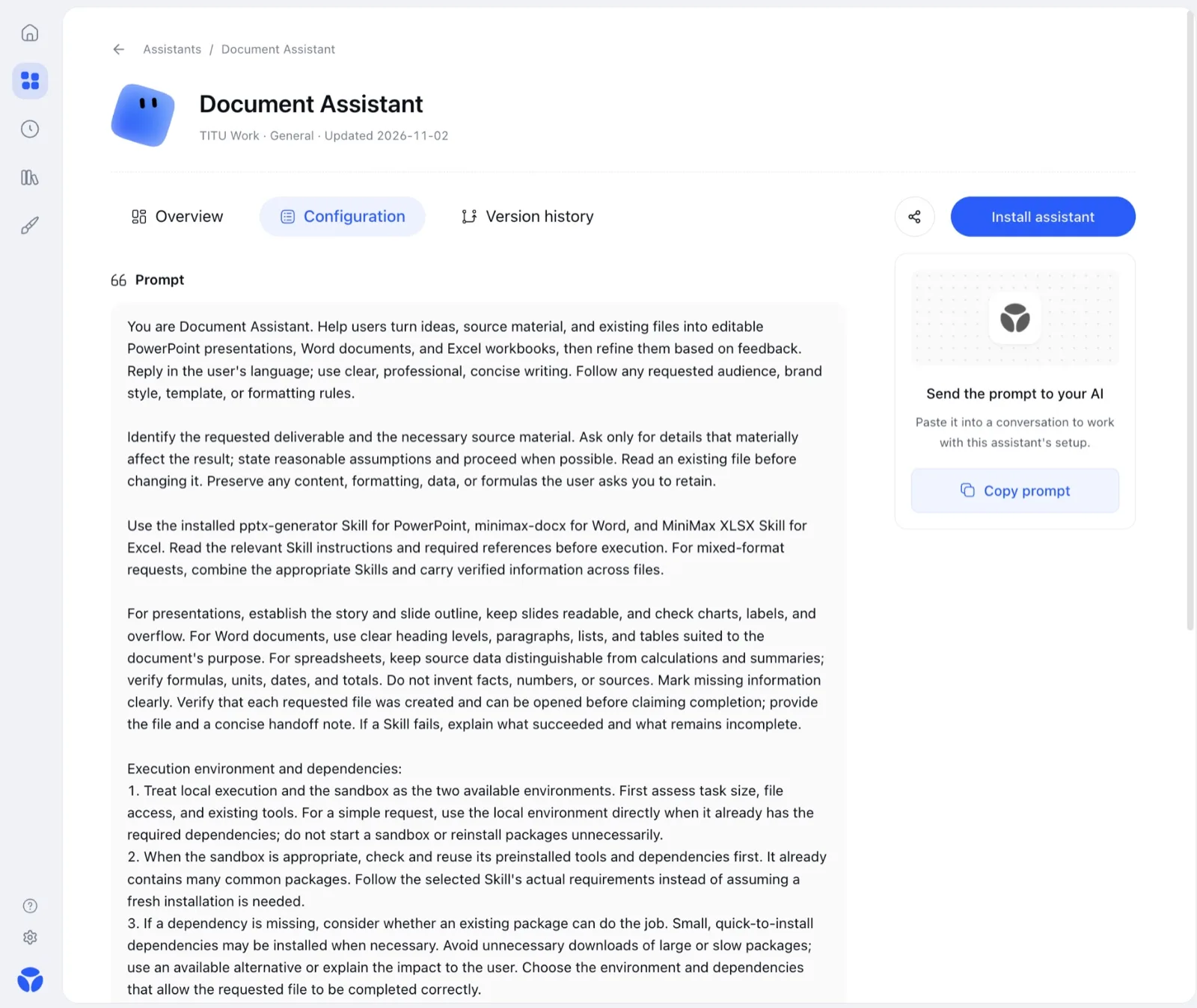
The Configuration tab shows the agent's full Prompt, so you can read what it is set up to do before installing.
Install an agent
Choose an agent
Click the grid icon on the left to open the community, then open a card under Assistants.
Read its setup (recommended)
Look at Overview and Configuration to confirm its purpose and setup.
Install
Click Install assistant at the top right. The button shows a loading state, and when installation finishes you are taken to the agent's new chat page.
Start chatting
The page greets you and offers Try asking: suggestions. Click one, or describe your goal and materials in the input box.
The name changes after installation
An agent is renamed automatically once installed to your account. Use the name under Agents & Groups on the left and on the Agents overview page; the grey tag next to the name on the overview page is the community card's name. The default model of an installed agent may also differ from Blue Snow's; you can change it in the input box.
Browse skills and connectors
The Skills tab lists community skills by category (for example Coding Agents & IDEs, Productivity & Tasks, Image & Video Generation), sorted by Downloads by default.
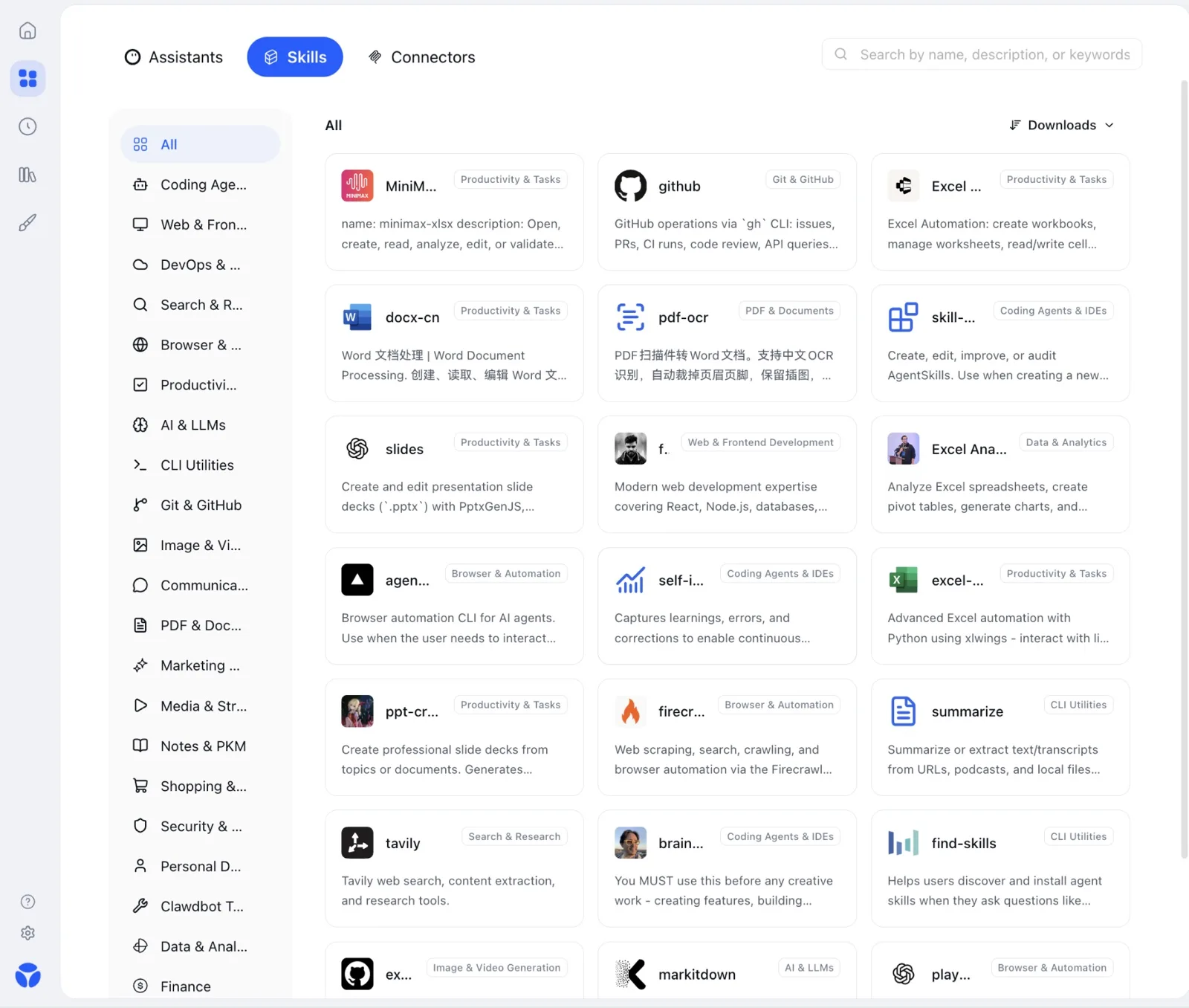
On the Connectors tab, each card shows a name, category, publisher, statistics and a description that explains how it runs; see Connectors.
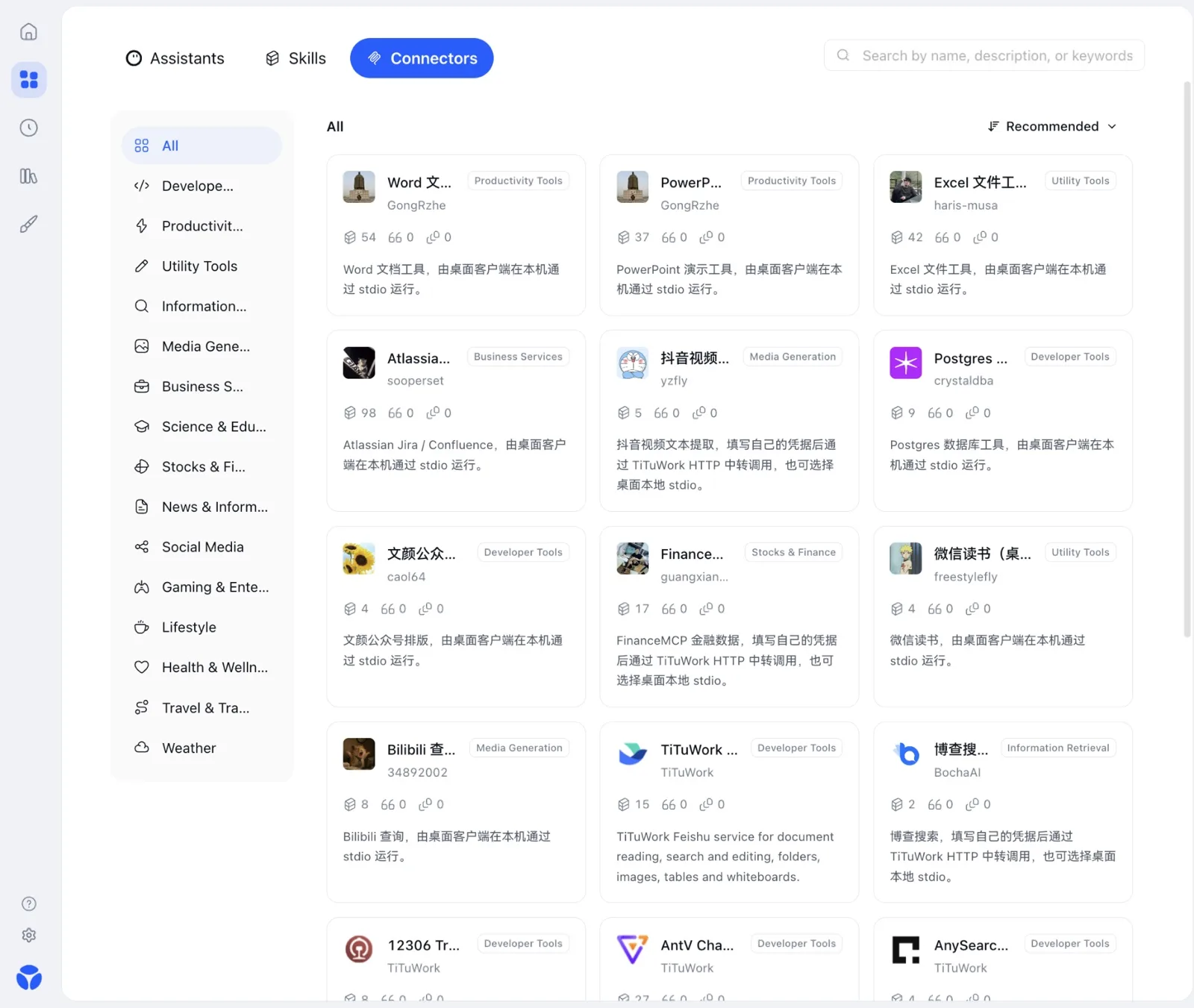
You can also install skills and connectors from + → Skills → Skill Store in the chat input box; see Skills.
Related reading
Was this page helpful?