

Choose a model
Switch models in the input box, and understand the context length, abilities and pricing on the detail card, and what the multiplier means.
Last updated on
Every chat can use a different model. Models differ in ability and cost, so choosing a lower-cost model whenever it is capable enough saves credits.
Switch models
Open the model list
Click the model name at the bottom right of the input box.
Find a model
Type a keyword in Search models... at the top, or pick directly from the list. Hovering over a model shows a detail card on the right.
Check abilities
In Abilities on the detail card, confirm it includes what you need. For example, if the model must read images, look for Vision.
Pick using the multiplier
Also look at the multiplier on the right of the list, and prefer a lower multiplier when the abilities are sufficient.
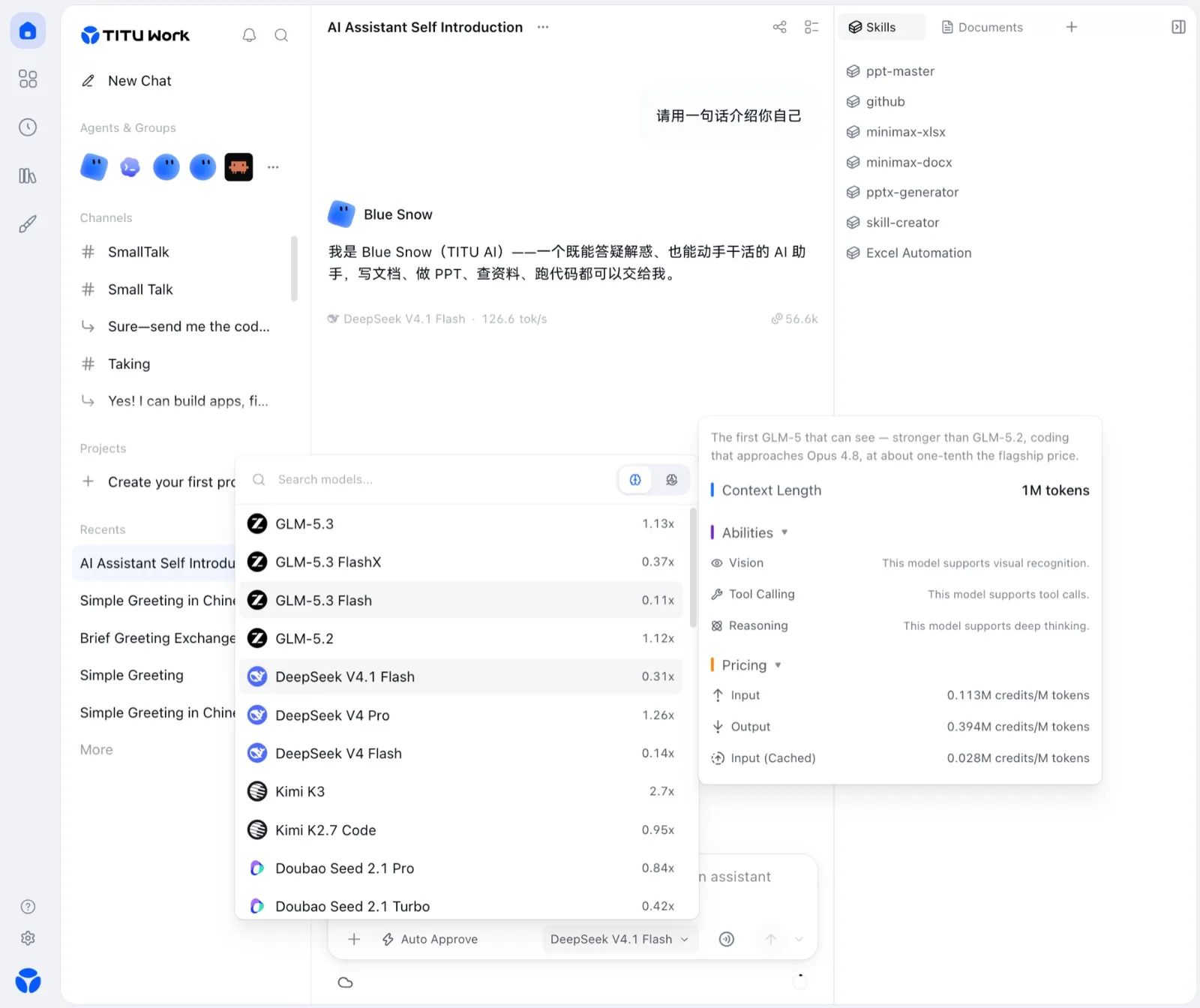
The detail card
| Item | Meaning |
|---|---|
| Summary | A short description of the model |
| Context Length | The context length, for example 1M tokens |
| Abilities | Ability tags: Vision (reads images), Tool Calling (calls tools), Reasoning |
| Pricing | Unit prices for Input, Output and Input (Cached), in credits per million tokens |
The multiplier
The number with an "x" next to a model name is its multiplier. It indicates roughly how many tokens the model consumes: the higher the multiplier, the faster credits are used. For example, Kimi K3 has a clearly higher multiplier than GLM-5.3 Flash, so the same task uses more credits.
The multiplier is only a rough guide. For what a particular reply actually consumed, see Usage and tokens.
The model list depends on your account
The available models and multipliers are configured by your organisation and may change at any time. Treat the list in the interface as authoritative.
Was this page helpful?