

Share and export a chat
Share a whole chat by link, or export it as an image, Markdown, PDF or JSON. Check what may be exposed before you share.
Last updated on
Click the share icon at the top right of a chat's title bar to share or export the chat.
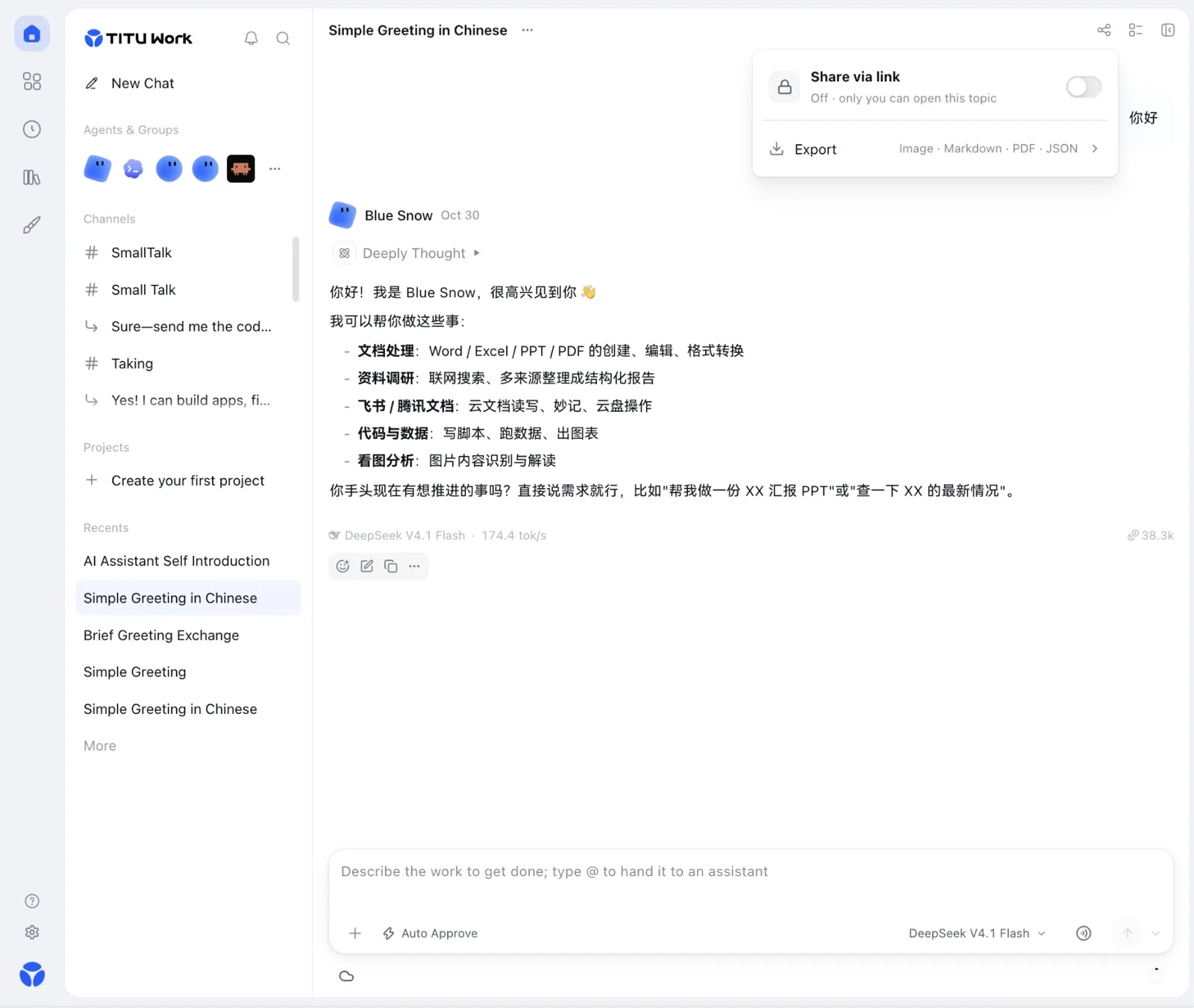
Share by link
Share via link is off by default, with the status text Off · only you can open this topic, so only you can open it.
Turn on the switch
Click the switch to the right of Share via link.
Read the confirmation
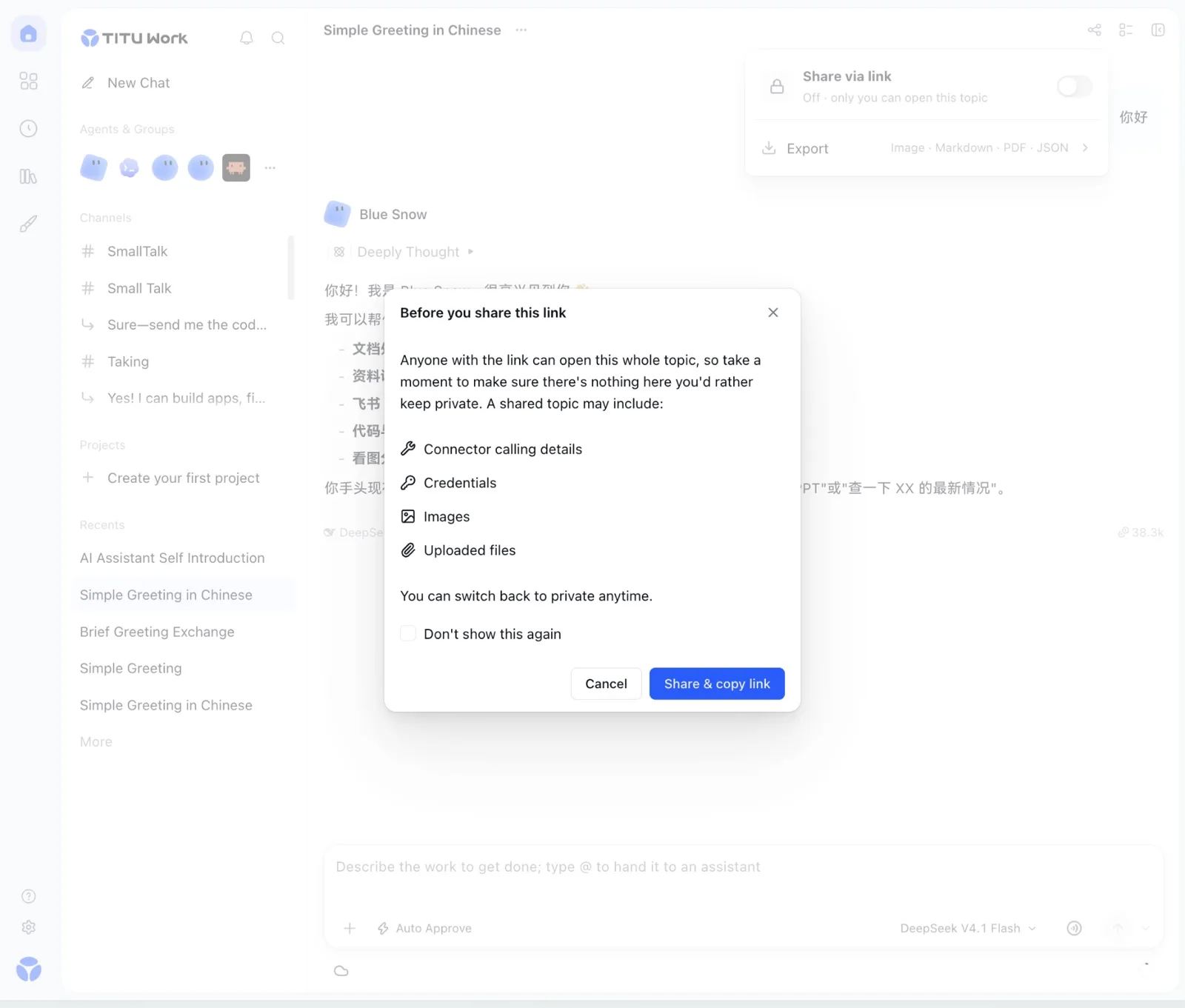
The Before you share this link dialog explains that anyone with the link can open the whole topic. What is shared may include connector calling details, credentials, images and uploaded files.
Confirm
Click Share & copy link to turn on sharing and copy the link. Tick Don't show this again to skip the dialog next time.
People who open the link see a read-only page, with a note at the bottom that the content was shared by a user and does not reflect TITU Work's views.
The whole chat is shared, not a single message
Before sharing, check the chat for credentials, internal files and images. You can return to the share menu at any time and turn the switch off to withdraw sharing.
Export
Export supports Image, Markdown, PDF and JSON.
I'm not sure whether I shared a chat
Open the share menu at the top right of the chat's title bar and check the Share via link switch. It is off by default; if it is on, turn it off.
Was this page helpful?