

Tool approval
Choose whether an agent runs tools automatically, runs only approved tools, or asks you every time.
Last updated on
When an agent calls a tool (for example enabling image generation, reading or writing documents, or reaching an external service), you can decide whether to allow it. Switch the approval mode at Auto Approve in the input box.
The three modes
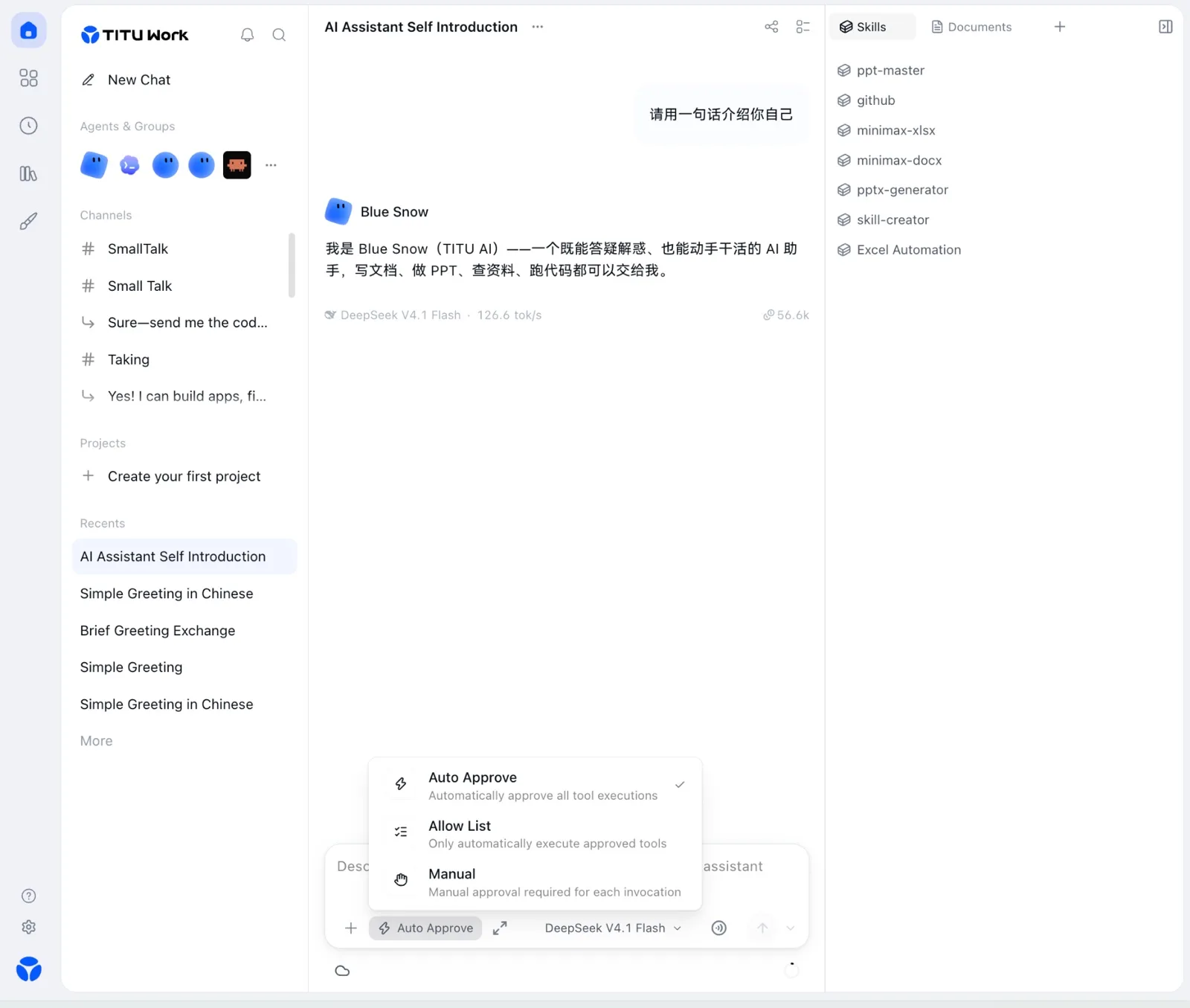
| Option | Interface text | Meaning |
|---|---|---|
| Auto Approve | Automatically approve all tool executions | The agent's tool calls are all allowed automatically. This is the default |
| Allow List | Only automatically execute approved tools | Only approved tools run automatically; others need your confirmation. Which tools need confirmation is set per tool in Settings → Connectors |
| Manual | Manual approval required for each invocation | Every tool call needs your confirmation |
The default is automatic approval
Auto Approve lets the agent run every tool call automatically. For tasks that involve external systems or may write or delete content, switch to Manual or Allow List.
Use Manual: confirm each call
After you choose Manual, an approval card appears where the input area is each time the agent is about to run a tool, and you decide whether to allow it.
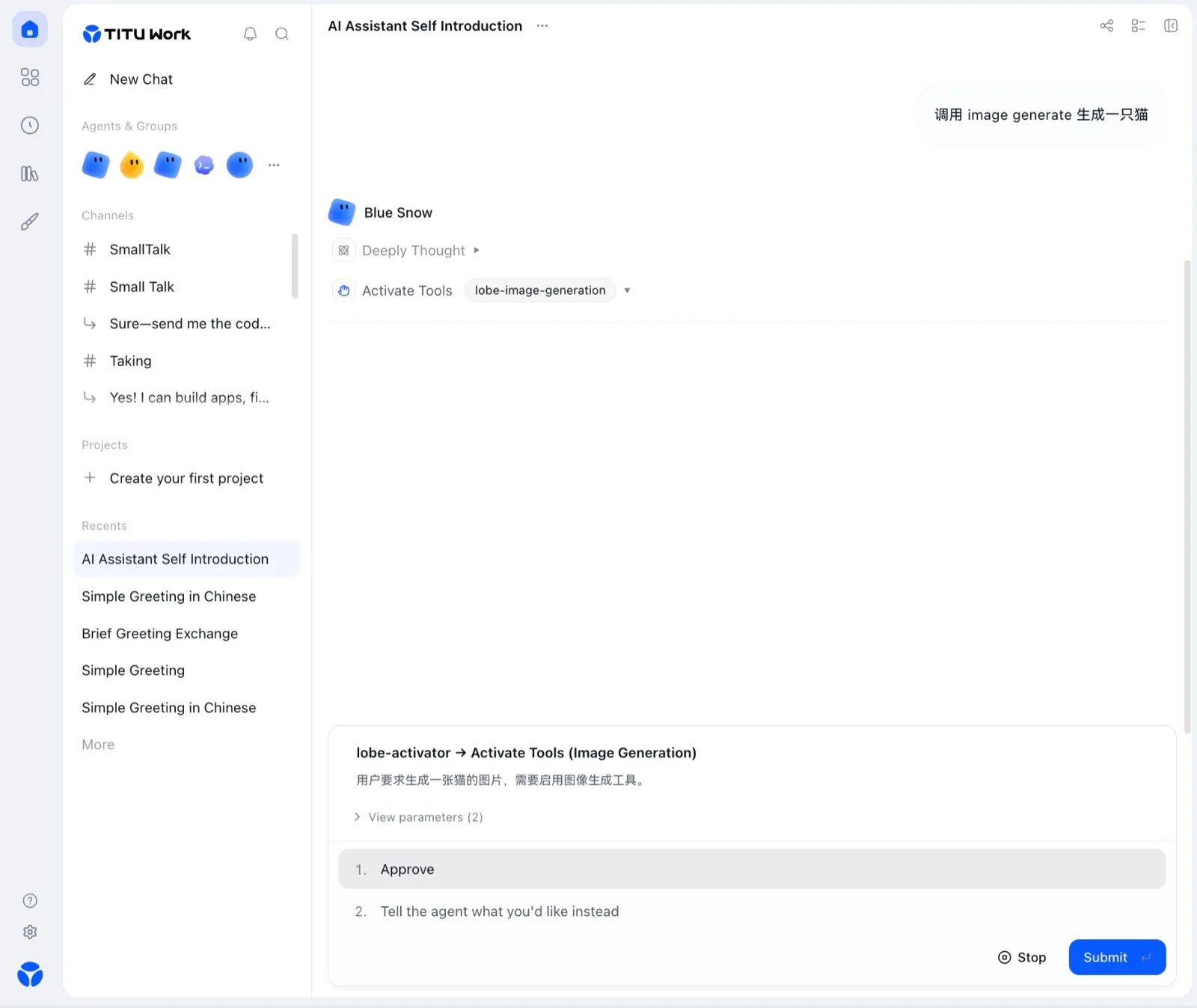
| Element | What it does |
|---|---|
| Title and description | Which tool the agent wants to call, and why |
| View parameters | Expand to see the call parameters |
| 1. Approve | Allow this call |
| 2. Tell the agent what you'd like instead | Decline, and tell the agent what you would prefer |
| Stop | Stop this task |
| Submit | Submit your choice |
Switch to Manual
Click Auto Approve in the input box and choose Manual.
Send a message that uses a tool
When the agent needs a tool, it pauses and shows an approval card.
Review the parameters and submit
Click View parameters to see the details, choose 1. Approve or 2. Tell the agent what you'd like instead, then click Submit. Click Stop if you do not want to continue.
Use Allow List: set it per tool
Set each tool
Go to Settings → Connectors and open the connector you want to configure. In its tool list, choose a level for the three icons on the right of each tool; this decides whether the tool needs your approval when called. The three icons are a tick, a hand and a prohibition sign, with no text in the interface.
Switch to Allow List
Back in the chat, click Auto Approve in the input box and choose Allow List. From then on, the agent's tool calls follow the settings from the previous step.
The agent is stuck on an approval card
This usually means the approval mode is Manual or Allow List and the agent is waiting for you. Expand View parameters, then allow the call or tell the agent what you would prefer. If you want calls to run automatically, switch the mode back to Auto Approve.
Was this page helpful?